
Joomla guide v1.3.2
Take payments on Joomla with Stripe: one-off charges, recurring subscriptions, paid forms, a customer portal and signed webhooks. 10 tables, Joomla 4.4 to 6.
Overview
Take payments on Joomla with Stripe: one-off charges, recurring subscriptions, paid forms, a customer portal and signed webhooks. 10 tables, Joomla 4.4 to 6.
Requirements
- Joomla 4.4, 5 or 6 depending on the package version.
- PHP 8.1 or later is recommended.
- A recent backup before installation or update.
Installation
- Download the ZIP package and do not extract it.
- In Joomla, open System → Install → Extensions.
- Drop the ZIP into the installation area and wait for the confirmation message.
- Open the component from Components. If the package includes a plugin, check its status under System → Manage → Plugins.
- Review component permissions before opening it to the team.
Initial configuration
- Open the extension dashboard.
- Open Options and review global settings.
- Grant Create, Edit, Delete and Configure permissions to the appropriate groups.
- Create a first test item and check the frontend when a public view is provided.
- Enable bundled plugins or scheduled tasks only when they are needed.
Features
Native Stripe integration
Stripe-hosted checkout, test and live modes, keys entered in the plugin or in the component options. The Stripe API version is pinned to 2023-10-16, so an upstream change never breaks your shop overnight.
Recurring subscriptions
Five states tracked in the database — active, trialing, past due, unpaid, cancelled — with current period start and end, next billing date and trial dates. Every event resynchronises them from Stripe.
Products, groups and plans
One-off or recurring products, organised into groups, with dedicated subscription plans. Daily, weekly, monthly or yearly intervals, a repeat count and a trial length configurable per plan.
Automatic Joomla groups
Each product can point at a Joomla user group. The buyer is added on payment and removed as soon as the subscription turns cancelled, unpaid or expired. Your restricted content follows the real state.
Stripe customer portal
One button in the billing area opens a Stripe portal session for the signed-in customer. They update their payment method, download invoices and end their subscription themselves.
Post-payment actions
After a successful purchase: redirect to a URL, redirect to a Joomla menu item, show a custom message, or run a PHP snippet that you enable explicitly, product by product.
Signed, logged webhooks
HMAC-SHA256 signatures verified in constant time, a 300-second freshness window, and the full event written to the database before any processing. The log is browsable from the admin.
Paid forms
A form builder with 18 field types and Stripe Elements payment built in. The amount can be fixed, taken from a form field, or inherited from a product — always revalidated server-side.
First steps
- Start with a simple use case and non-sensitive data.
- Validate the result with the team that will use the extension.
- Record site-specific choices such as roles, automations, templates and integrations.
- Roll out gradually, then monitor logs and user feedback.
Screenshots
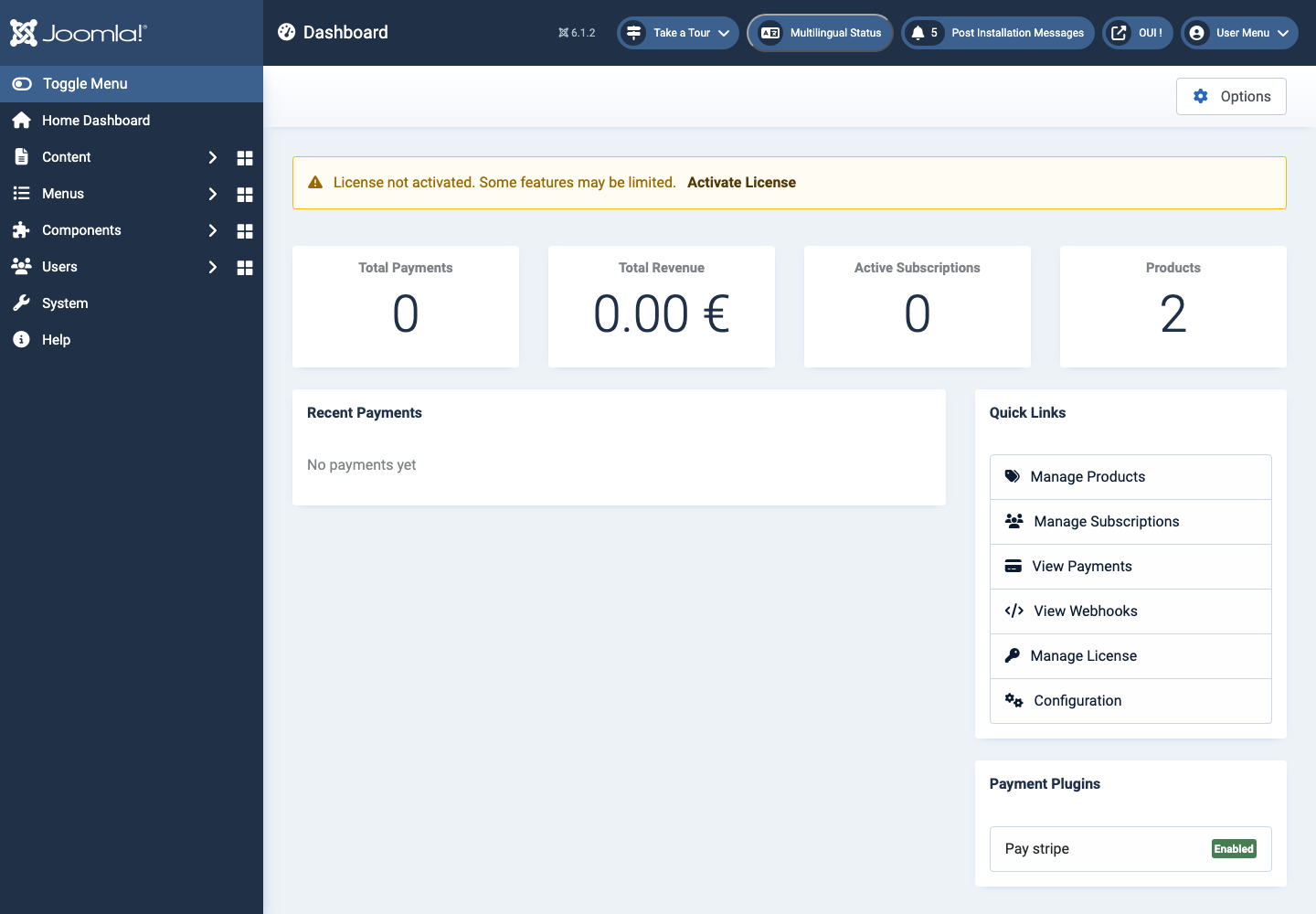
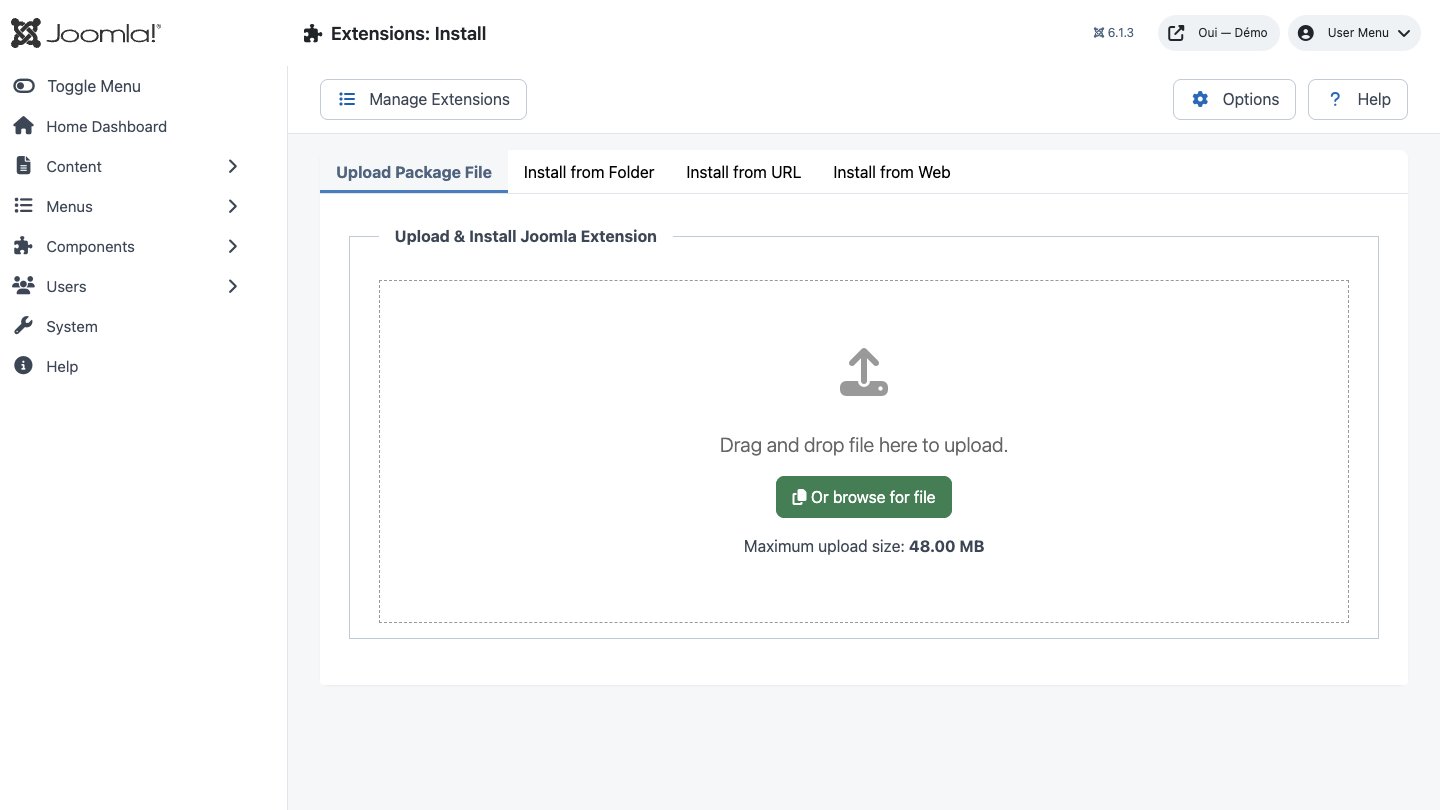
Troubleshooting
- The extension does not appear after installation
- Check the installer message and the component/plugin status, then clear Joomla or WordPress caches.
- An action is denied
- Review the user group permissions, session token and any security restrictions.
- The output does not match the site
- Test with caching disabled, inspect template overrides and look for CSS or JavaScript conflicts.
- An external integration fails
- Check the URL, credentials, quotas and logs without copying secrets into a support request.
Updating and uninstalling
Before updating, back up files and the database, read the release notes, and test on a copy of the site. Export useful data before uninstalling. Removing a package may remove several related components, modules or plugins.