
Joomla guide v0.0.3
Device Template Switcher serves a different Joomla template style per device — mobile, tablet, desktop. Server-side detection, a Vary: User-Agent header, zero SQL tables.
Overview
Device Template Switcher serves a different Joomla template style per device — mobile, tablet, desktop. Server-side detection, a Vary: User-Agent header, zero SQL tables.
Requirements
- Joomla 4.4, 5 or 6 depending on the package version.
- PHP 8.1 or later is recommended.
- A recent backup before installation or update.
Installation
- Download the ZIP package and do not extract it.
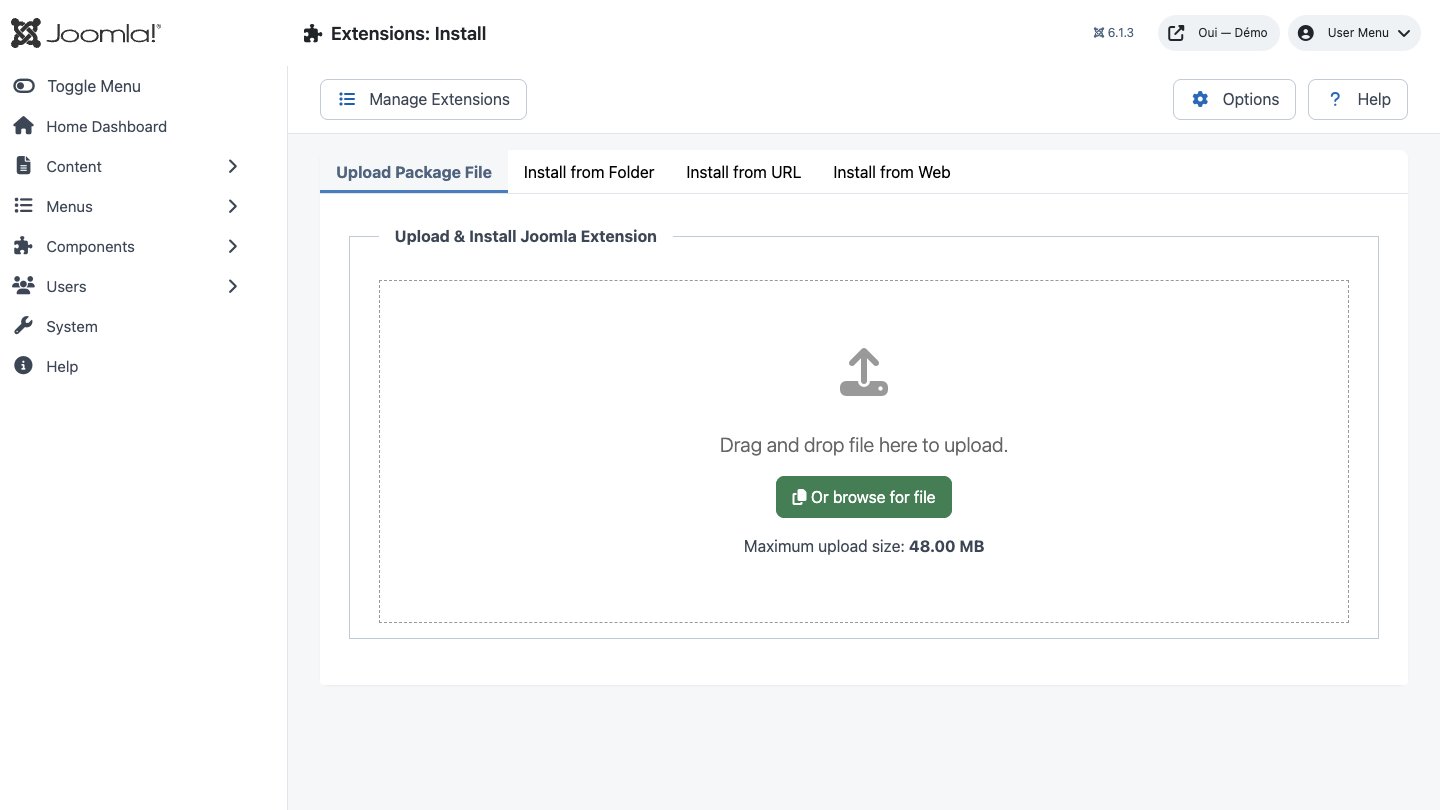
- In Joomla, open System → Install → Extensions.
- Drop the ZIP into the installation area and wait for the confirmation message.
- Open the component from Components. If the package includes a plugin, check its status under System → Manage → Plugins.
- Review component permissions before opening it to the team.
Initial configuration
- Open the extension dashboard.
- Open Options and review global settings.
- Grant Create, Edit, Delete and Configure permissions to the appropriate groups.
- Create a first test item and check the frontend when a public view is provided.
- Enable bundled plugins or scheduled tasks only when they are needed.
Features
One template style per device
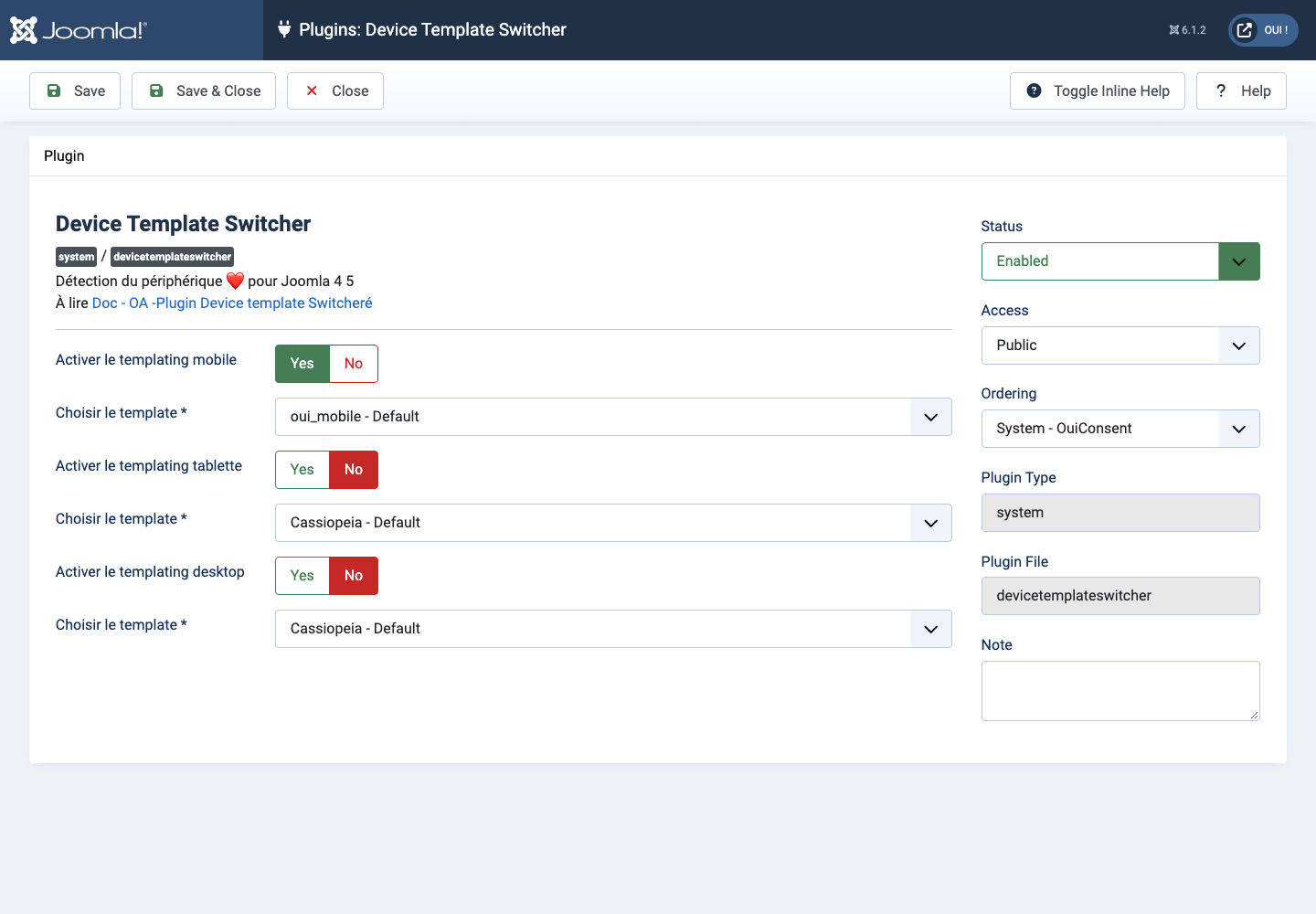
Three independent settings: phone, tablet, desktop. Each is switched on separately and points at an existing template style. A device whose templating is off gets the site's default style, exactly as if the plugin were not installed.
Detection on the server
Recognition runs on Mobile_Detect 2.8.12, the reference library for User-Agent parsing, shipped inside the package. No JavaScript round trip, no screen width test: the decision is made before a single byte of HTML is produced.
Automatic Vary header
Every response from the site carries Vary: User-Agent — including the ones where no switch happened. It is Google's stated requirement for dynamic serving, and it is also what stops an intermediate cache serving the desktop version to a phone.
Tablets, your call
Give them a style of their own, or decide they follow the desktop — or the mobile. The Tablet fallback setting answers the question once and for all, and only appears while no dedicated tablet style is enabled: no ghost settings in the interface.
Three guards before switching
The plugin only changes template when templating is enabled for the device, when the requested style genuinely exists in the database, and when its folder is present in templates/. One condition missing? It does nothing and the default style applies.
Minimal footprint
No table created, no CSS or JavaScript added to your pages, no network call, no visitor data retained. A single indexed read from #__template_styles, and only when a switch is actually configured for the detected device.
Install the package
One ZIP in Extensions → Install. It drops the plugin, its manifest and the Mobile_Detect library. No table is created, no migration is run, nothing in your content is touched.
Prepare your styles
In System → Template Styles, duplicate your style and tune it for mobile — or install a dedicated template. You can start from the same template with different parameters; it is the style that matters, not the template.
First steps
- Start with a simple use case and non-sensitive data.
- Validate the result with the team that will use the extension.
- Record site-specific choices such as roles, automations, templates and integrations.
- Roll out gradually, then monitor logs and user feedback.
Screenshots
Troubleshooting
- The extension does not appear after installation
- Check the installer message and the component/plugin status, then clear Joomla or WordPress caches.
- An action is denied
- Review the user group permissions, session token and any security restrictions.
- The output does not match the site
- Test with caching disabled, inspect template overrides and look for CSS or JavaScript conflicts.
- An external integration fails
- Check the URL, credentials, quotas and logs without copying secrets into a support request.
Updating and uninstalling
Before updating, back up files and the database, read the release notes, and test on a copy of the site. Export useful data before uninstalling. Removing a package may remove several related components, modules or plugins.