
Joomla guide v1.2.1
Flux shows your latest Facebook, Instagram and TikTok posts on your Joomla website. You build boards, place them on a page with a menu item, and they keep themselves up to date; a scheduled task renews your network access before it expires.
Features
Three networks
The Facebook Pages you manage (posts, feed, photos or videos), the Instagram Business or Creator accounts linked to those Pages, and your TikTok account.
Boards
Each board combines one, two or three networks, sorted newest first, with its own layout and number of posts.
Several layouts
Grid (one to six columns), wall, timeline or carousel. Date, likes, comments and shares are shown or hidden, board by board.
For visitors
Buttons to filter by network and a “Load more” button to keep browsing without leaving the page.
Access renewed
The “Flux: refresh social tokens” scheduled task extends Facebook and Instagram tokens and refreshes TikTok tokens before they expire.
Never an empty page
Posts are cached. If a network doesn’t answer, the board shows the last posts it received. Tokens never appear in any log.
Requirements
- Joomla 6.
- PHP 8.1 or later.
- For Facebook and Instagram: a Facebook account that manages the Page to show, and an app created on
developers.facebook.com. - For TikTok: an app created on
developers.tiktok.comwith the Display API. - Joomla’s task scheduler running, for automatic token renewal.
- A recent backup before installing.
Installation
Install pkg_flux_1.2.1.zip from System → Install → Extensions. The package contains the Flux - Social Feeds component and the Task - Flux plugin, enabled on install: it provides the scheduled task that renews the tokens.
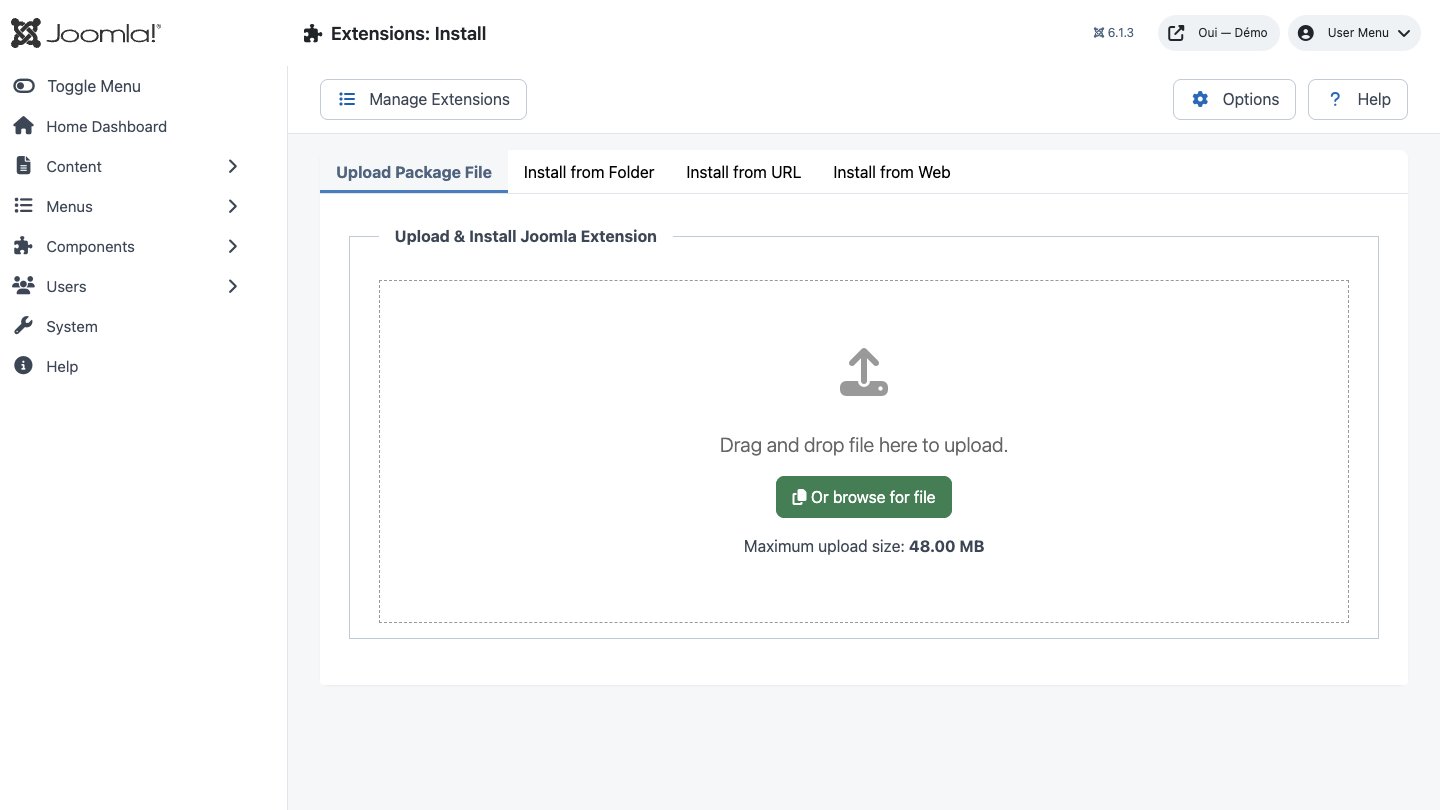
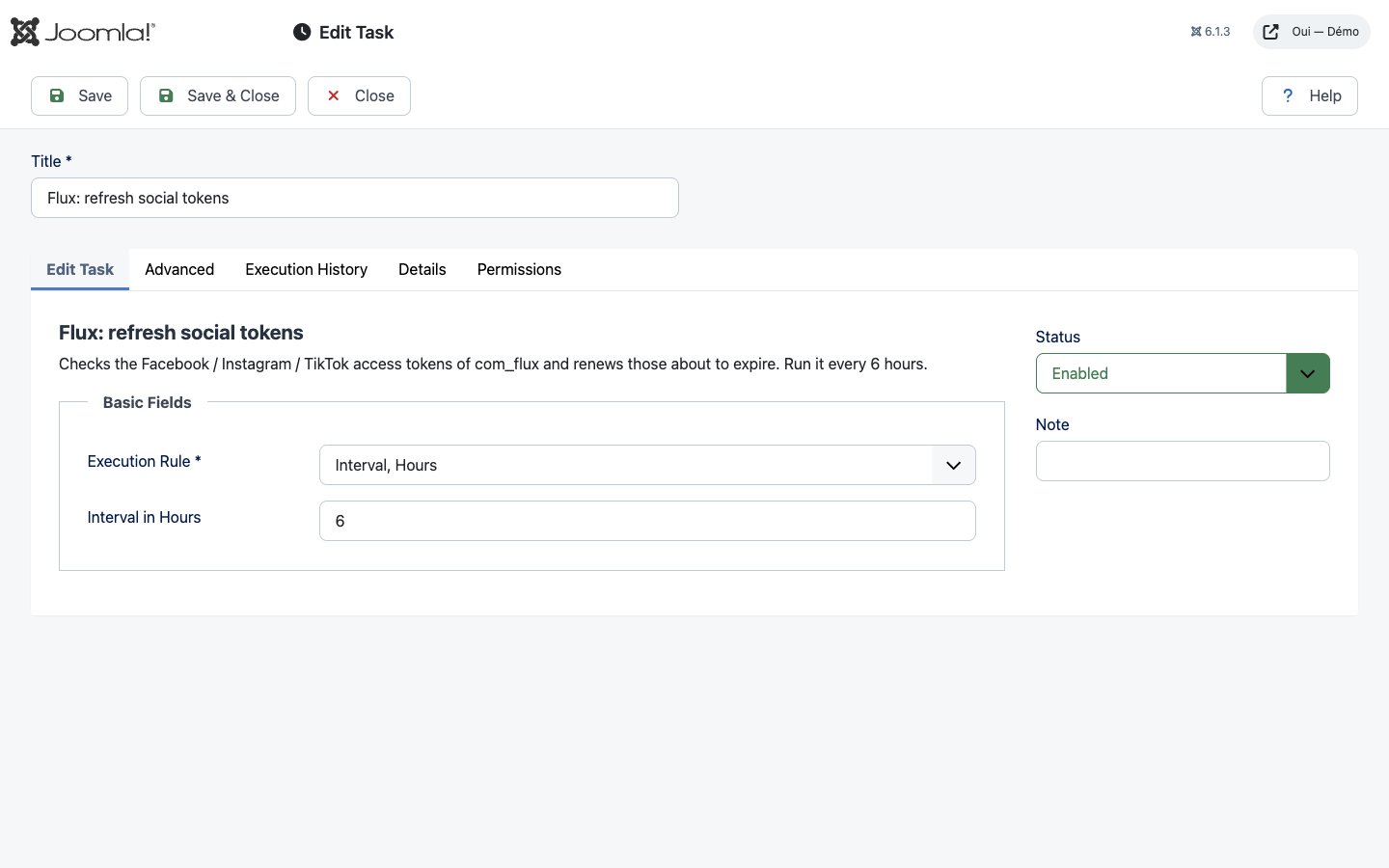
Then create the renewal task:
- Open System → Scheduled Tasks → New.
- Choose Flux: refresh social tokens.
- Set Execution Rule to Interval, Hours and Interval in Hours to 6.
- Leave the status on Enabled and save.
The Create the task link on the Flux dashboard opens this screen directly.
Dashboard
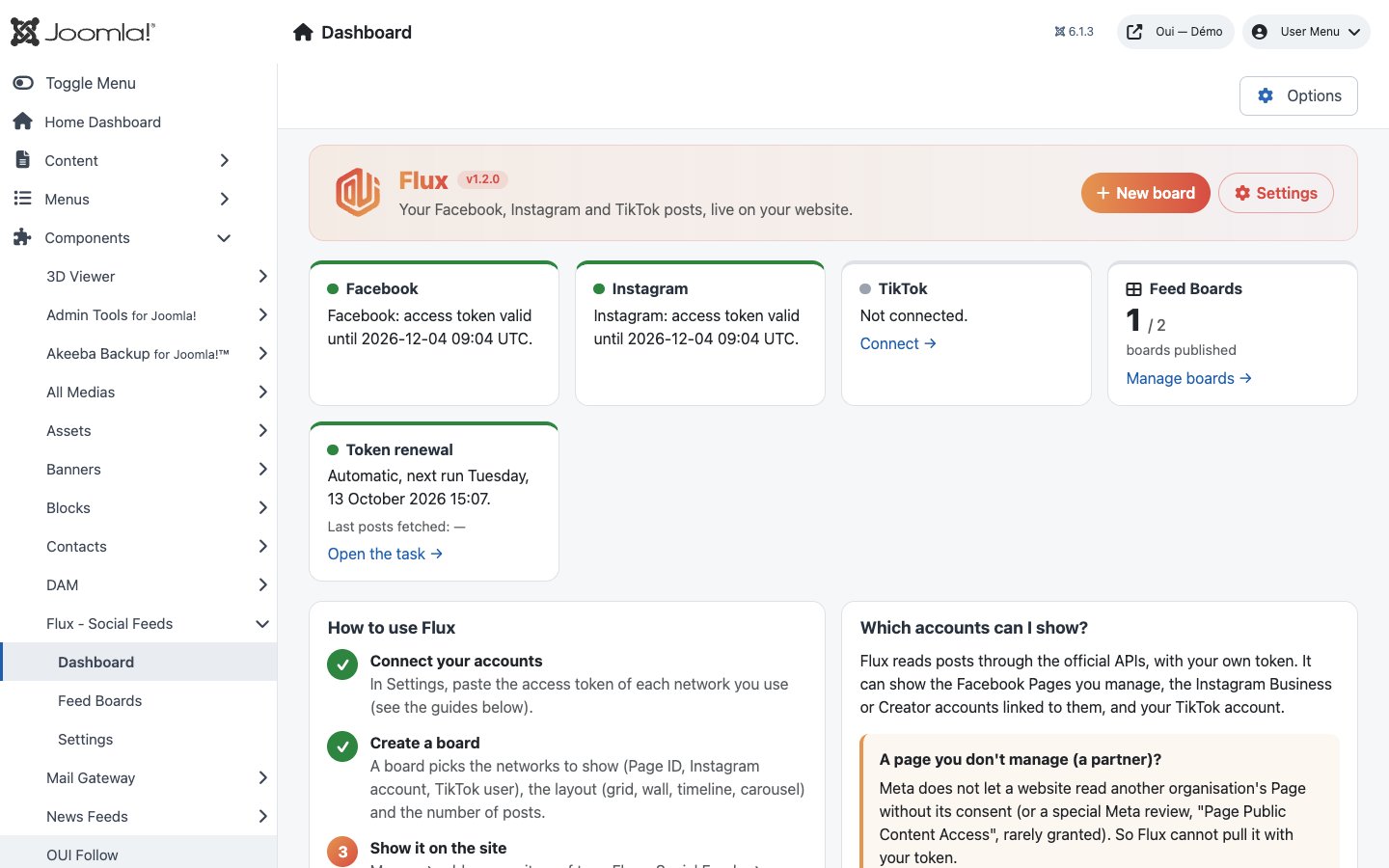
Components → Flux - Social Feeds opens on the dashboard. At a glance it shows:
- each network’s connection state: token valid (and until when), due for renewal, expired, or network not connected with a Connect link;
- the number of published boards out of the total, with a link to the list;
- the renewal task’s state (next run, or a warning if it is missing or disabled) and when posts were last fetched;
- a four-step guide, ticked off as you go;
- which accounts Flux can show, and the options for a partner’s Page;
- how to get a Facebook / Instagram token and a TikTok token.
Connecting your networks
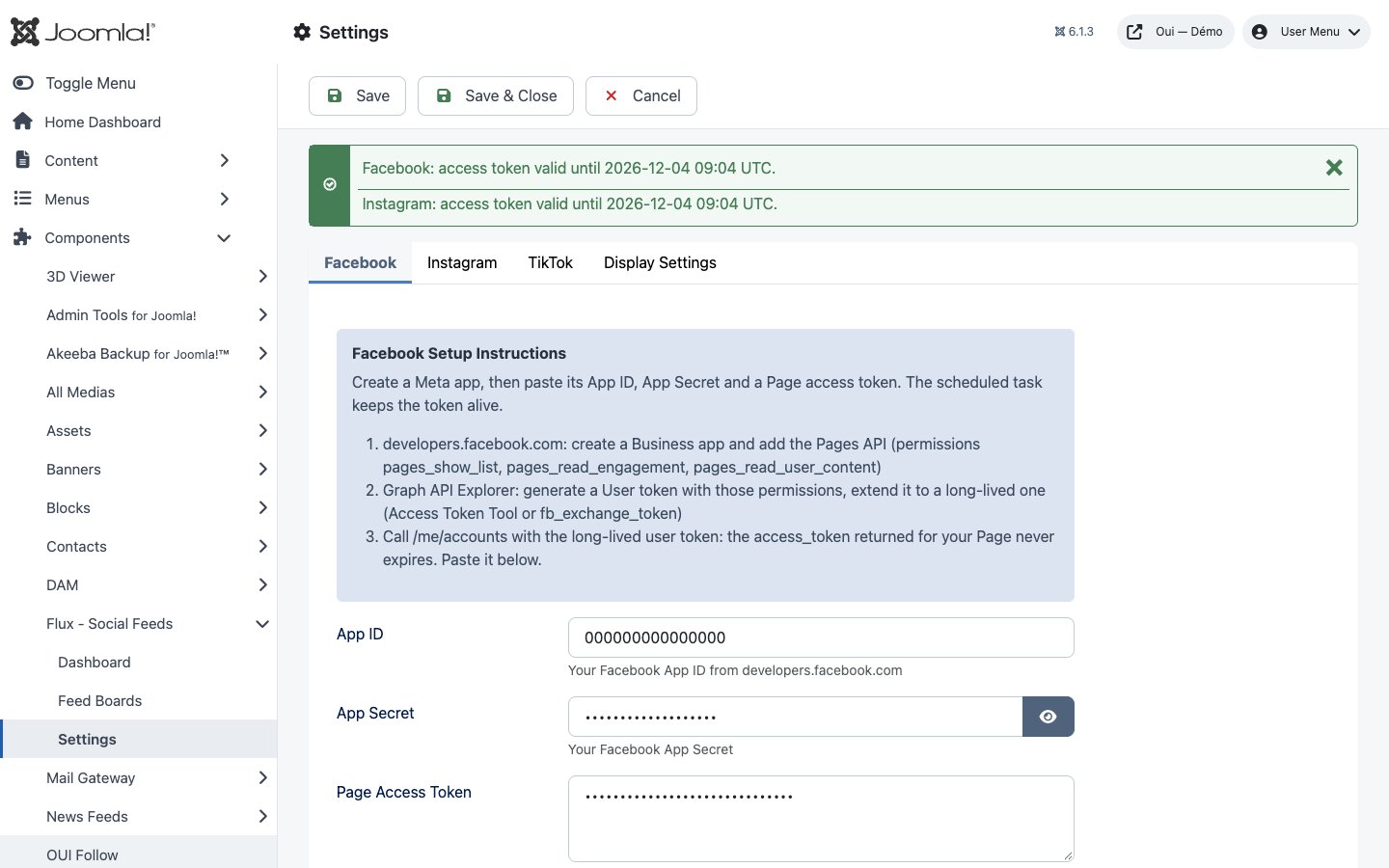
Credentials are entered in Flux → Settings, one tab per network. Each tab recalls the steps. You paste a token once: the scheduled task then keeps it alive.
Facebook and Instagram
- On
developers.facebook.com, create a Business app; note its ID and secret. - In the Graph API Explorer, generate a user token with the
pages_show_list,pages_read_engagement,pages_read_user_contentpermissions, plusinstagram_basicfor Instagram. - Extend it to a long-lived token with the Access Token Debugger (“Extend Access Token”).
- Call
GET /me/accountswith that token: theaccess_tokennext to your Page is a Page token. - Paste the app ID, the secret and that token in the Facebook tab; for Instagram, paste the token in the Instagram tab. The app ID and secret can stay empty there: Flux then uses Facebook’s.
TikTok
Create an app on developers.tiktok.com with the Display API (scopes user.info.basic and video.list), authorise your account, then paste the client key, client secret, access token and refresh token in the TikTok tab. A TikTok access token lasts 24 hours and the refresh token 365 days: without the scheduled task, TikTok display stops after a day.
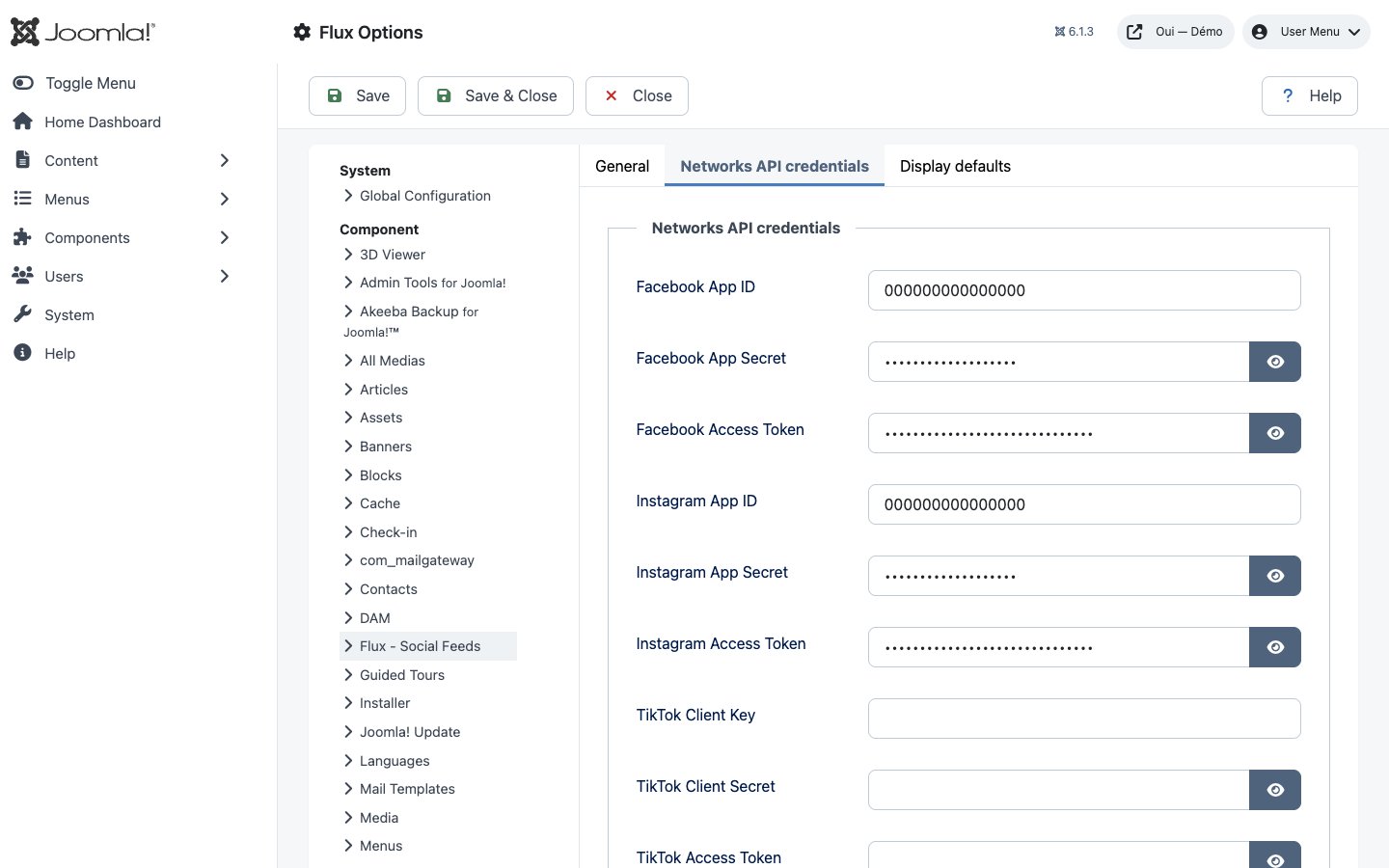
The same credentials are also available in the component’s Options, Networks API credentials tab, where every secret and token is masked.
Which accounts can be shown?
Flux reads posts through the official APIs, with your own token. It shows:
- the Facebook Pages your account manages;
- the Instagram Business or Creator accounts linked to one of those Pages;
- the videos of the TikTok account that authorised the app.
Meta does not let a website read another organisation’s Page without its consent (or a special Meta review, “Page Public Content Access”, rarely granted). To show a partner’s Page, you have two options:
- ask its admins to give your Facebook account a role on their Page (Settings → Page access): their Page then appears in your token and Flux can show it;
- or show it with Facebook’s official Page plugin, in a Custom module holding the embed code from
developers.facebook.com/docs/plugins/page-plugin: no token needed, but with Facebook’s look.
Creating a board
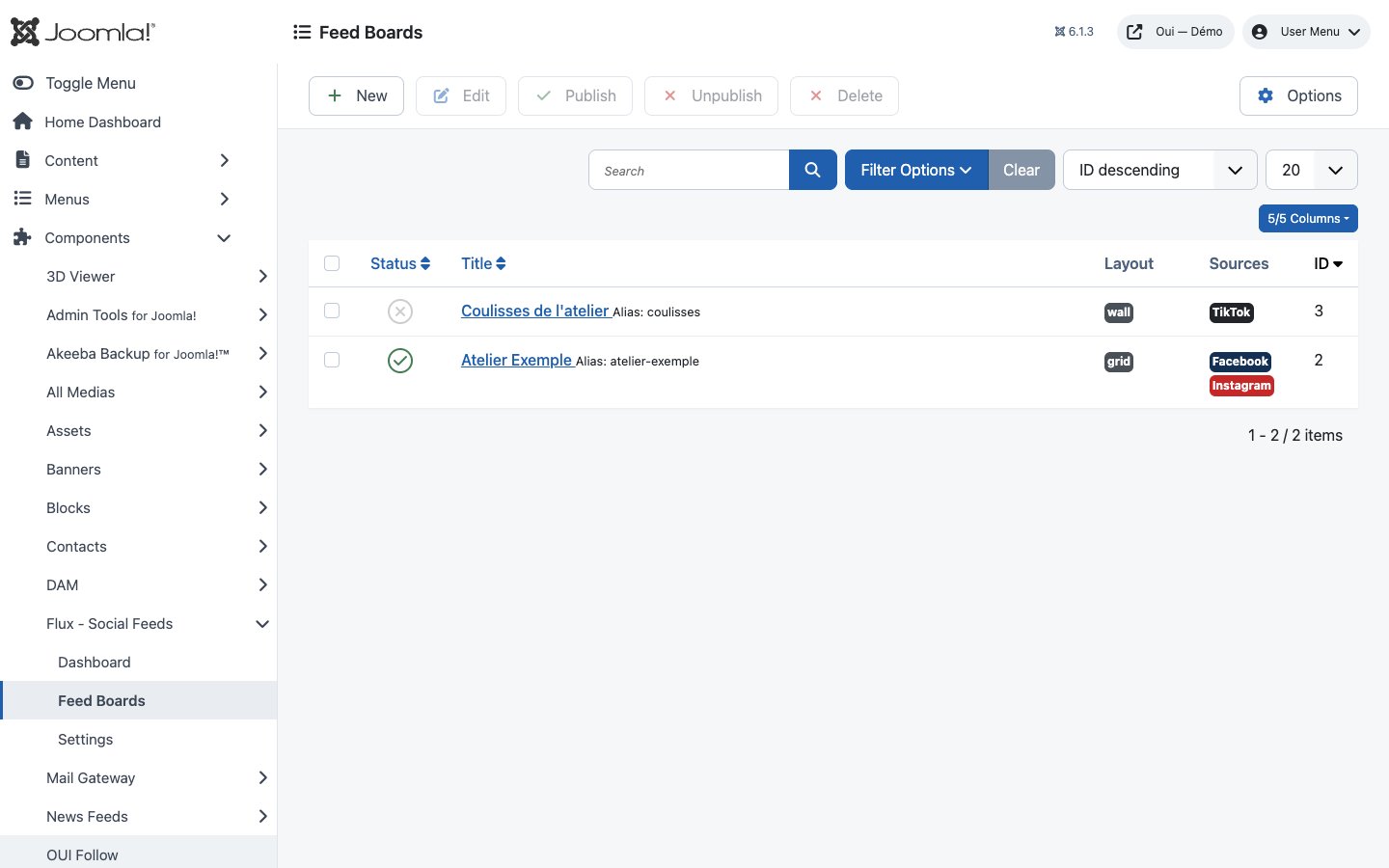
A board is what you show on a page: a choice of networks, a layout and a number of posts. The Feed Boards list shows each board’s status, layout and sources; it can be sorted, filtered and searched by title.
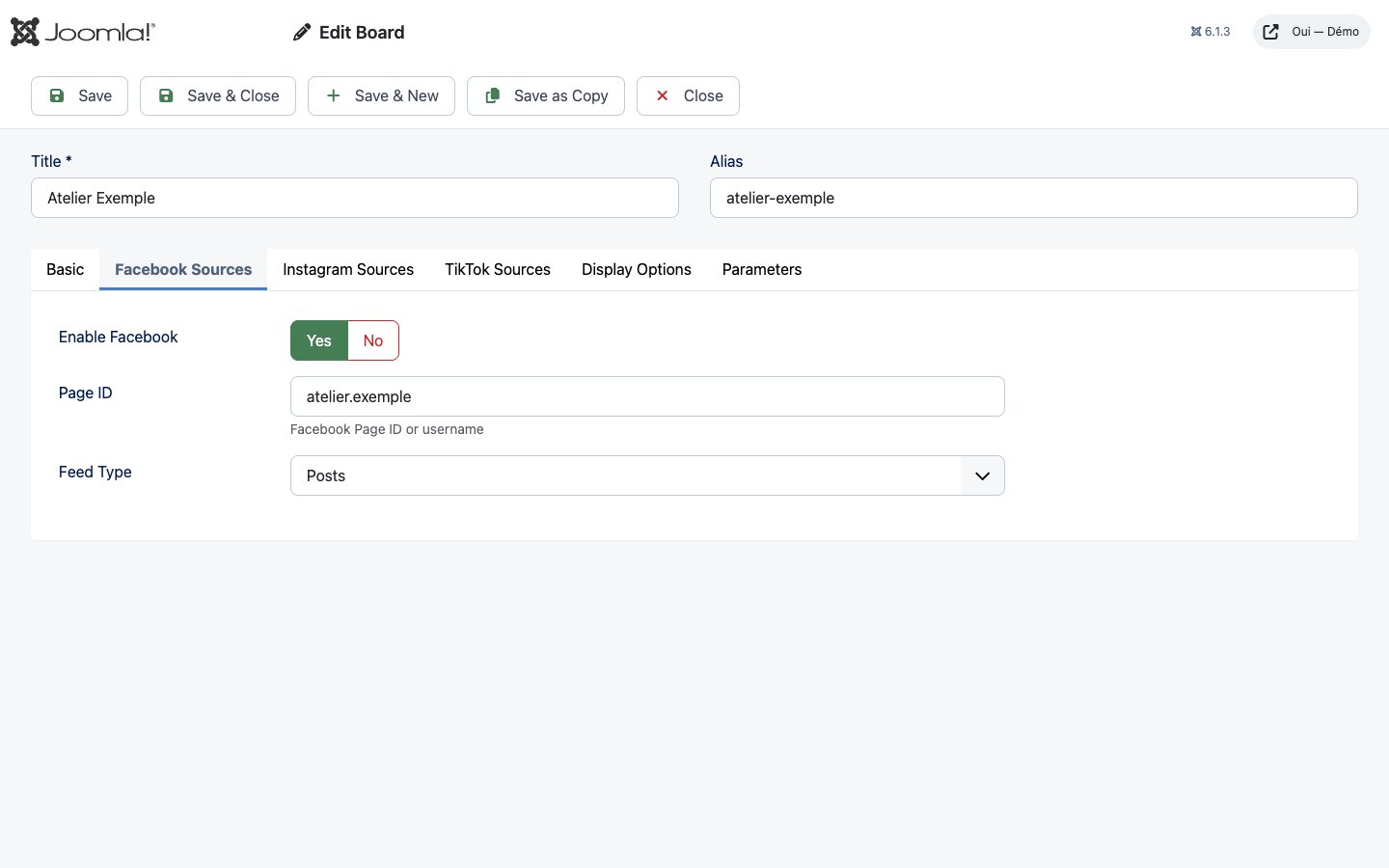
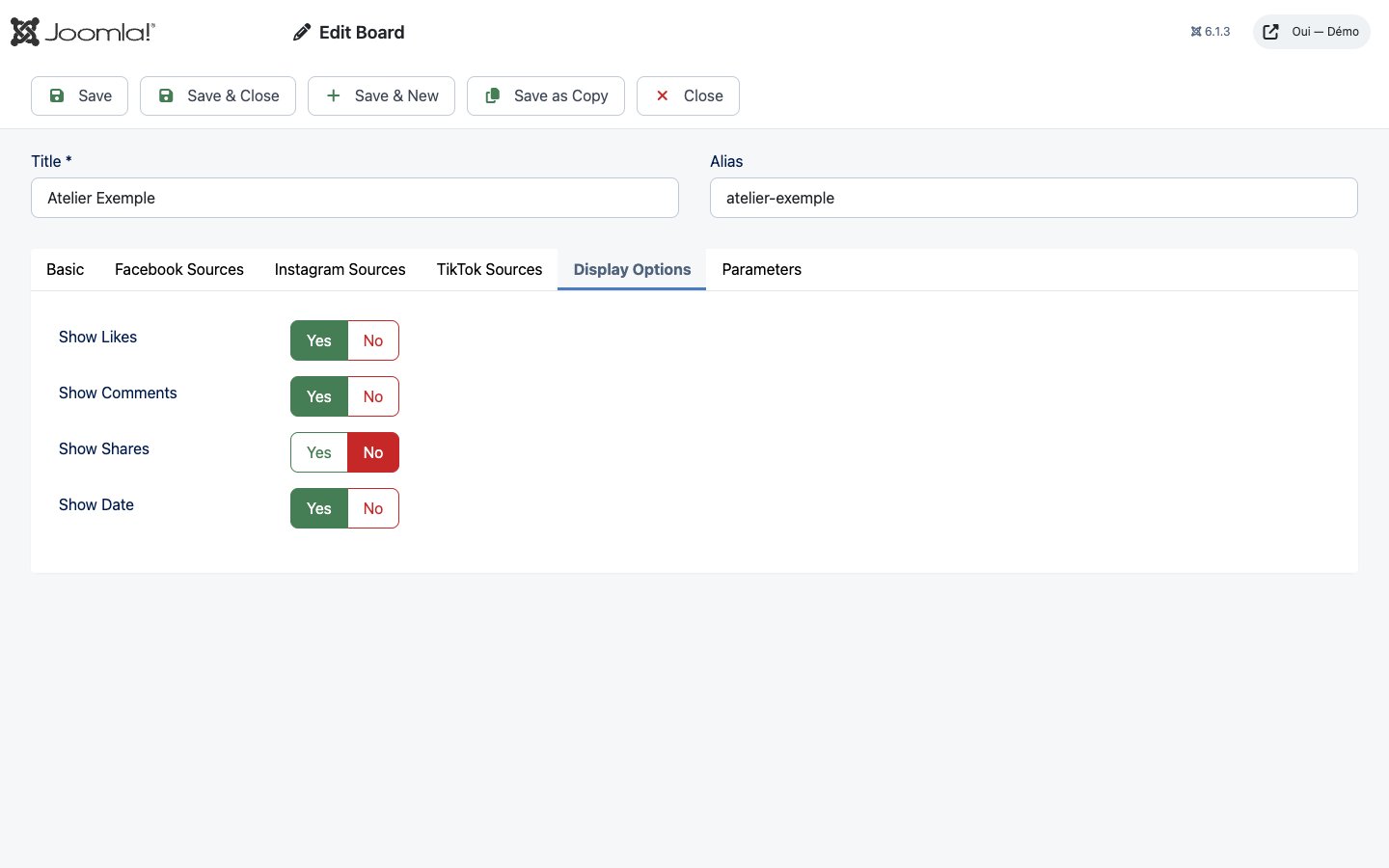
Click New. Below the title and alias, the form has six tabs:
- General: layout, number of posts to show, status.
- Facebook Sources: enable Facebook, the Page ID or name, and the feed type (posts, feed, photos or videos).
- Instagram Sources: enable Instagram and the Instagram account ID.
- TikTok Sources: enable TikTok and the username. Flux shows the videos of the account connected in Settings.
- Display Options: show or hide likes, comments, shares and the date.
- Parameters: number of columns (1 to 6) and spacing in pixels.
| Layout | Result |
|---|---|
| Grid | Even cards, over the chosen number of columns. |
| Wall | Images keep their height and stack in columns. |
| Timeline | Posts follow one another on either side of a line. |
| Carousel | A horizontal slider with previous and next buttons, no library to add. |
Showing a board on the site
- Open Menus, pick a menu and click New.
- Menu item type: Flux - Social Feeds → Social Feed.
- In Select Board, choose a published board.
- Save. The page shows the board.
Layout, number of posts and what is shown are set in the board itself. Posts sit inside your template’s page, which can style them with CSS (classes .com-flux, .flux-board).
Options
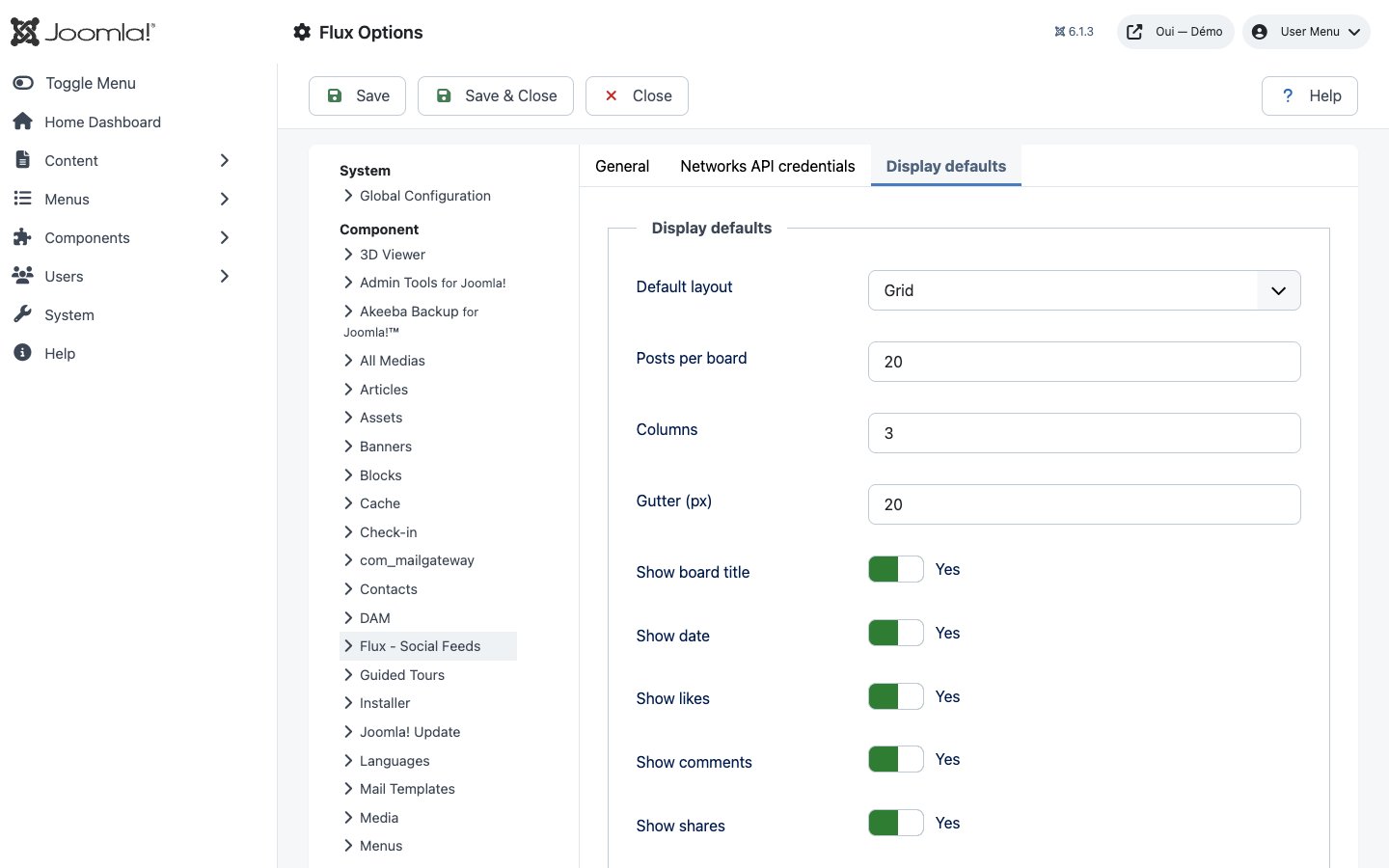
The Options button (or System → Global Configuration → Flux - Social Feeds) has three tabs:
| Tab | Settings | Default |
|---|---|---|
| General | Cache time, in seconds (60 to 86,400): how long before a new post appears | 900 (15 minutes) |
| Networks API credentials | App ID, secret and token for Facebook and Instagram; client key, client secret, access token and refresh token for TikTok. Every secret is masked. | empty |
| Display defaults | Layout, posts per board, columns, spacing, show board title, date, likes, comments, shares | Grid, 20, 3, 20 px, yes |
The default display values apply when a board leaves a setting empty.
Token renewal and warnings
Network tokens expire: about 60 days for a Meta long-lived token, 24 hours for a TikTok access token. Flux renews them in two ways:
- the scheduled task, every 6 hours: it extends a Meta token when it expires within 10 days, and refreshes a TikTok token when it expires within 6 hours;
- a check before display, at most once an hour per network, as a fallback if the task did not run.
The new token, its expiry date and its state are stored in the component parameters. Pasting a new token in Settings resets its state: it is checked again on next use.
When a token needs attention, a message appears at the top of the Feed Boards and Settings screens, and on the network’s card in the dashboard:
- expires on … and not yet renewed: enable the scheduled task;
- expired on …: the board shows the last cached posts; paste a new token in Settings;
- needs your attention: the last renewal failed, with the reason given by the network.
The task’s Execution History tab reports, for each network, ok, skipped (not configured or not due yet) or FAILED with the message, never showing a token.
Troubleshooting
- The board is empty
- Check on the dashboard that the network is connected, that the source is enabled in the board and that the Page ID, Instagram ID or TikTok username is filled in. A network without a token is skipped.
- A new post doesn’t show
- It will appear when the cache renews (15 minutes by default). Lower the cache time in Options if needed.
- A partner’s Page doesn’t show
- Your token gives no access to that Page: see Which accounts can be shown?
- Instagram returns nothing
- The account must be Business or Creator and linked to a Facebook Page you manage, and the token must include
instagram_basic. - TikTok stops after a day
- A TikTok access token lasts 24 hours: fill in the refresh token and enable the scheduled task.
- “No renewal task” on the dashboard
- Create the Flux: refresh social tokens task (see Installation). If it isn’t offered, check that the Task - Flux plugin is enabled.
Update and uninstall
Before updating, back up files and database and read the changelog. Install the new package over the old one: boards, credentials and options are kept, and the posts cache is recreated. Coming from version 1.1, credentials typed in the old Settings screen were not used by the feeds: check that they are present in the 1.2.0 Settings.
To uninstall, remove the Flux package from System → Manage → Extensions: the component and the task plugin are removed, and boards, cache and credentials are deleted. Also delete the scheduled task and the Flux menu items.