
WordPress guide v1.0.0
Off-canvas slide-out navigation panel for WordPress. Customizable sidebar with widgets, menus, and content areas.
Overview
Off-canvas slide-out navigation panel for WordPress. Customizable sidebar with widgets, menus, and content areas.
Requirements
- A maintained, up-to-date WordPress installation.
- PHP 7.4.
- A recent backup before installation or update.
Installation
- Download the plugin ZIP file.
- In WordPress, open Plugins → Add New Plugin → Upload Plugin.
- Select the ZIP, install it, then click Activate.
- Reload the administration area and locate the new menu or settings page.
- On production sites, clear application and page caches after activation.
Initial configuration
- Open the settings page added by the plugin.
- Configure only the services and options that are actually used.
- Save, then test the behaviour with a non-administrator account.
- Check the result on desktop and mobile.
- If WooCommerce or another plugin is required, also verify its status and version.
Features
Off-canvas panel
Sliding sidebar from left or right. Two animation modes: slide (pushes content) or overlay (floats above). Smooth CSS transitions.
Full customisation
Separate colours for the main menu and submenus. Background image, Google Fonts, size, weight, spacing and uppercase mode configurable.
Native accessibility
Full ARIA, focus trapping, keyboard navigation (Tab, Space, Escape) and focus restoration on close. WCAG 2.1 level A compliant.
Multi-level submenus
Unlimited submenu depth support. Animated arrow indicators, automatic expansion of the current page and optional clickable parent links.
Mobile-first
Optional fixed mobile navigation bar, configurable responsive threshold (320–1200px) and separate button positioning on mobile. Touch-friendly and smooth.
Integrated social networks
6 preconfigured networks (Facebook, X, Instagram, LinkedIn, YouTube, Email) with built-in SVG icons and customisable colour.
Integrated search
Native WordPress search field directly in the panel. Your visitors find what they are looking for without leaving the navigation.
Widget area
Dedicated WordPress widget area in the panel. Add any standard widget, plus HTML/shortcode zones above and below the logo.
First steps
- Start with a simple use case and non-sensitive data.
- Validate the result with the team that will use the extension.
- Record site-specific choices such as roles, automations, templates and integrations.
- Roll out gradually, then monitor logs and user feedback.
Screenshots
Troubleshooting
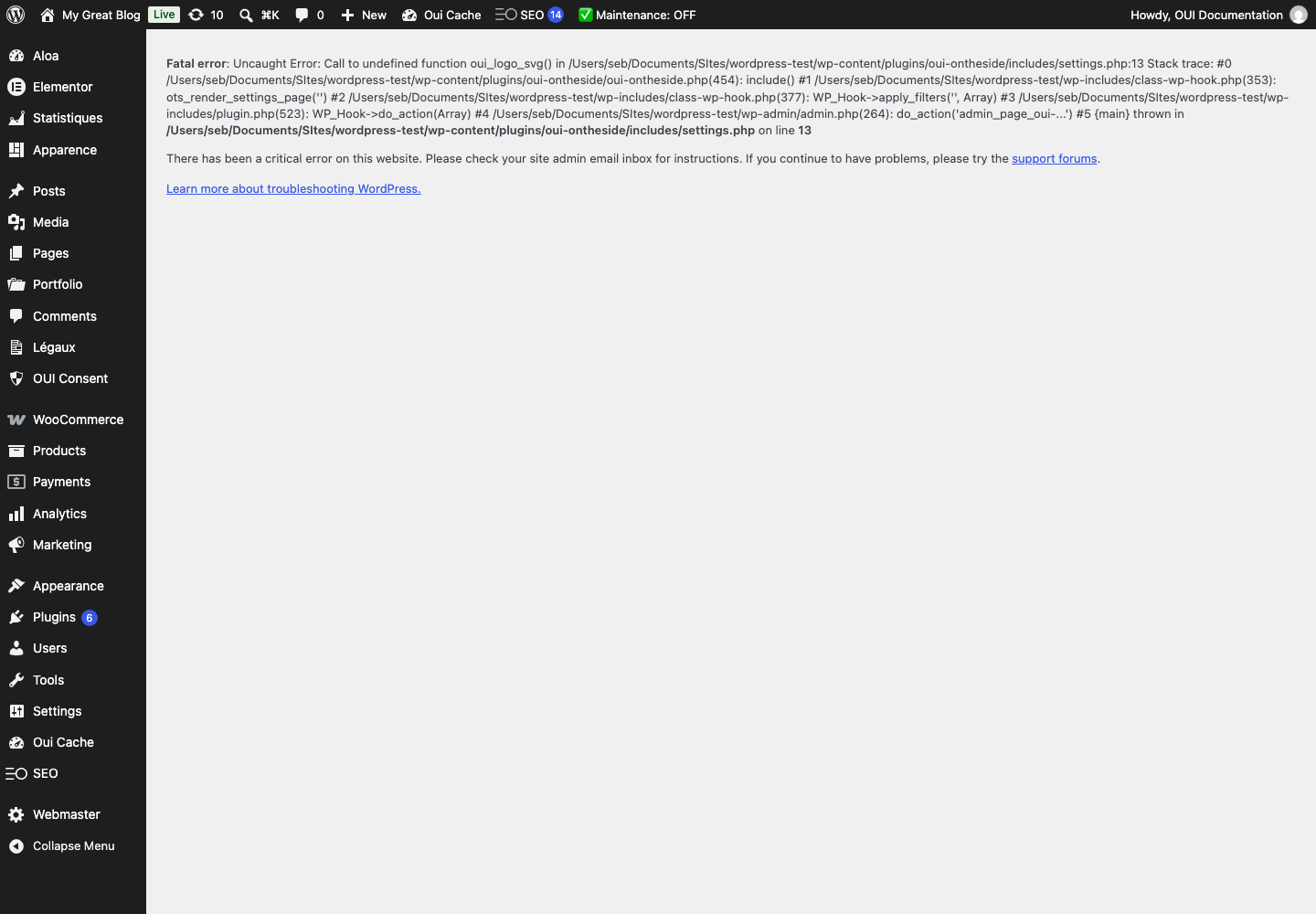
- The extension does not appear after installation
- Check the installer message and the component/plugin status, then clear Joomla or WordPress caches.
- An action is denied
- Review the user group permissions, session token and any security restrictions.
- The output does not match the site
- Test with caching disabled, inspect template overrides and look for CSS or JavaScript conflicts.
- An external integration fails
- Check the URL, credentials, quotas and logs without copying secrets into a support request.
Updating and uninstalling
Before updating, back up files and the database, read the release notes, and test on a copy of the site. Export useful data before uninstalling. Removing a package may remove several related components, modules or plugins.