
Work is the production module of Contexte: this is where your team tracks its client projects, breaks work down into tasks, talks to clients, gets deliverables approved, handles support interventions and records time spent. It is aimed first at the agency's staff and partners; your clients can also view the projects you share with them.
This guide follows a typical day at the fictional agency Maison Ardoise (Nantes) and its clients.
Installing Work
Work is part of your Contexte instance. If you do not have an instance yet, first follow the guide Install my Hub instance.
Opening Work
- Log in to your hub with your username and password.
- In the left-hand menu, click Taff. The menu opens on the Panneau de contrôle (Control panel) and shows its sub-menus: Nouveau Projet (New project), Projets (Projects), Flux (Feed), Assistants and Interventions.
- Your time tracking is under Moi > Ma journée de travail (Me > My working day).
The Taff menu and the control panel are reserved for the Collaborateurs (Staff) group (and for partners). Nouveau Projet only appears for partners: creating projects from the site is limited to the groups chosen in the component options.
Tip: administrators and component managers see all projects. Other users only see in Projets the projects that have been shared with them (client access on the project).
The control panel
The control panel is your home page. At the top, it greets you with the date and time, offers your quick links and a card in your name (with Ma présence and Déconnexion).
Just below, the Ce qui m'attend (What awaits me) strip summarises what needs your attention:
- Interventions: the open interventions that concern you; a click opens the list of interventions.
- Commandes (Orders) and Leads: shown when the corresponding modules are installed.
- À traiter (To handle): urgent interventions and overdue orders. This is the only tile that turns red.
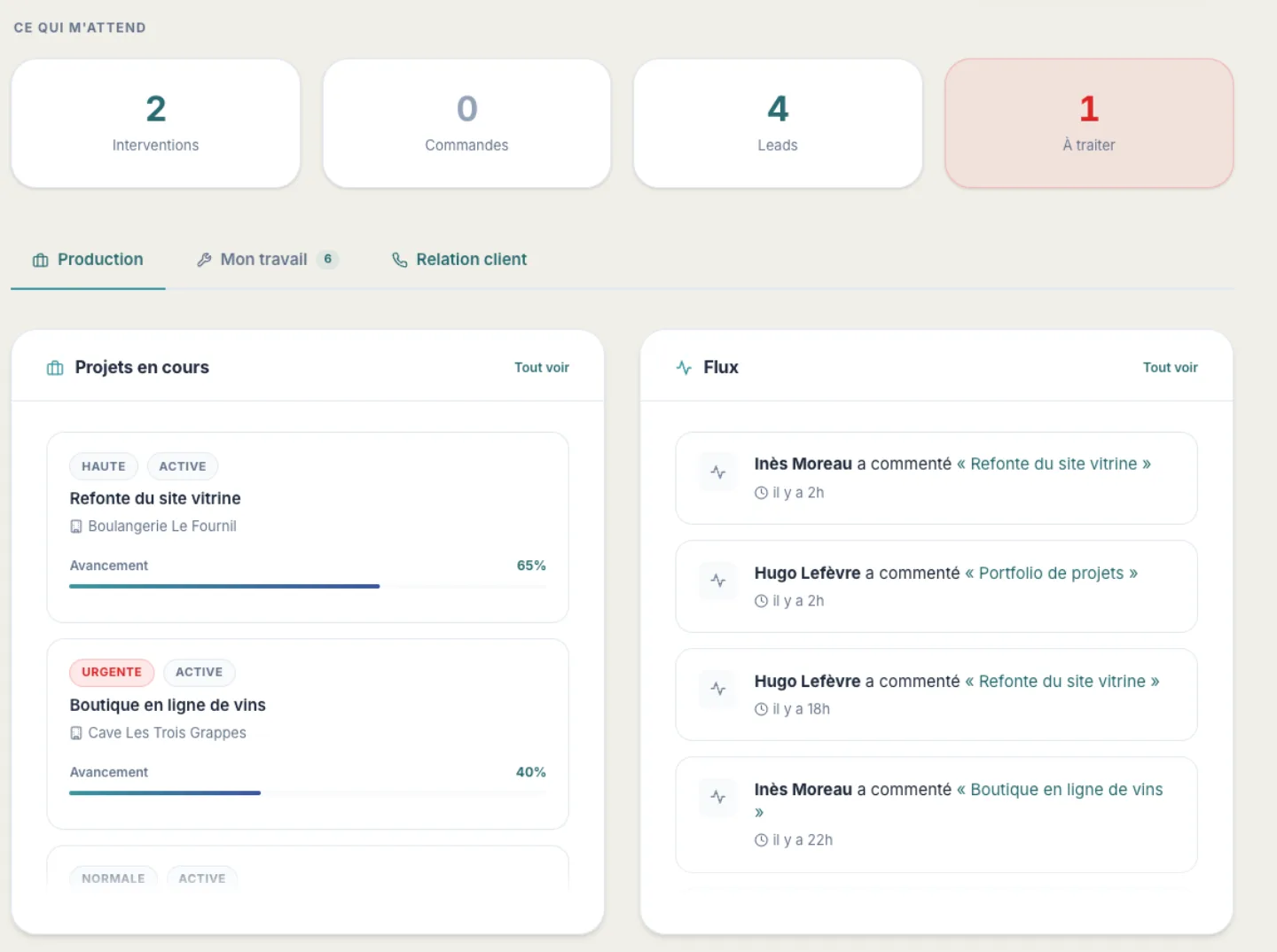
The rest of the page is organised in tabs, which only appear if they have something to show:
- Production: the Projets en cours (Current projects) (priority, client, progress), from most recently modified to oldest, and the Flux (Feed), which lists the latest comments left on active projects. Tout voir (See all) opens the full list.
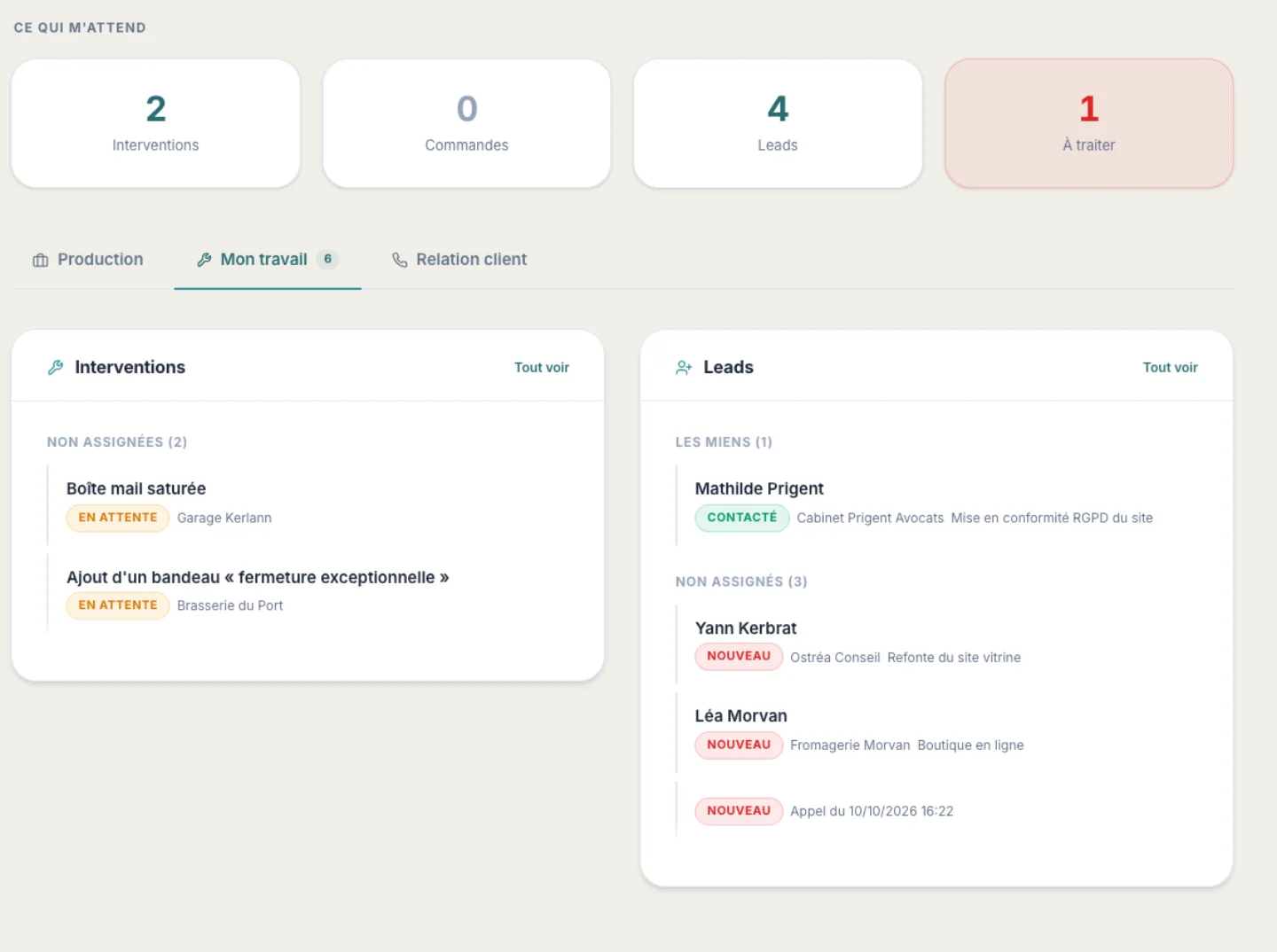
- Mon travail (My work): your interventions and those not yet assigned to anyone, along with orders and leads. The number next to the tab name gives the total.
- Relation client (Client relations) (partners): recent calls, conversations, tickets and voice messages, depending on the installed modules.
Viewing the list of projects
- Click Taff > Projets.
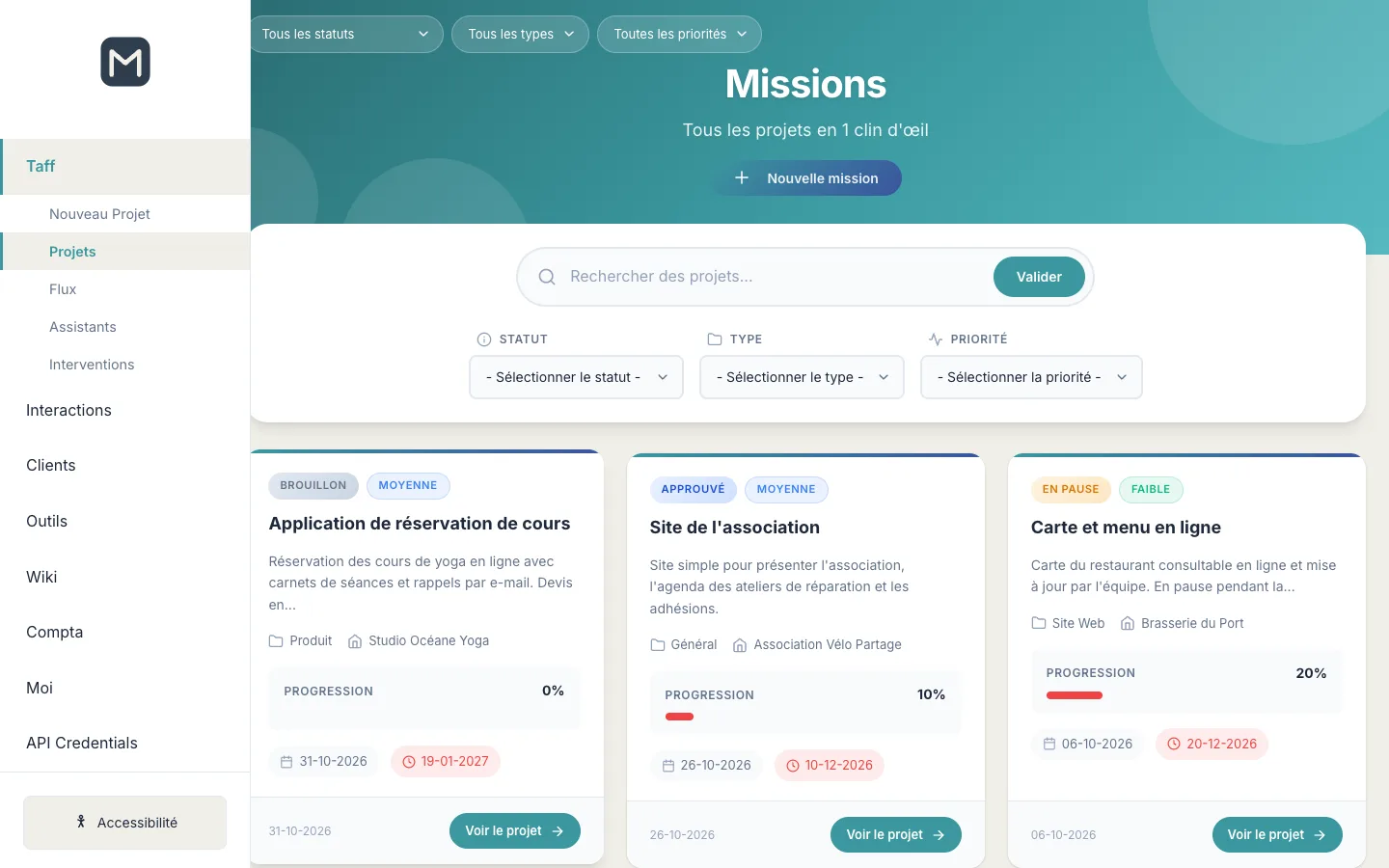
- Each project is displayed as a card: status, priority, title, start of the description, type, client, number of comments, progress bar, start date and due date.
- To find a project, type a word in Rechercher des projets… (Search projects…) and click Valider (Submit).
- Refine with the Statut, Type and Priorité lists (they are also offered at the top of the page).
- Click Voir le projet (View project) to open it.
Project statuses
- Brouillon (Draft): the project is being prepared (quote pending, scoping to be done).
- Actif (Active): the project is in production.
- En attente d'approbation (Awaiting approval): the team is waiting for approval before continuing.
- Approuvé (Approved): the project is approved and can start.
- Terminé (Completed): the project has been delivered.
- Archivé (Archived): the project is closed and filed away.
- En pause (On hold): the project is suspended.
- Annulé (Cancelled): the project will not go ahead.
Priorities
A project has one of these priorities: Faible (Low), Moyenne (Medium), Élevée (High), Urgente (Urgent). The filter also offers Critique (Critical).
Project types
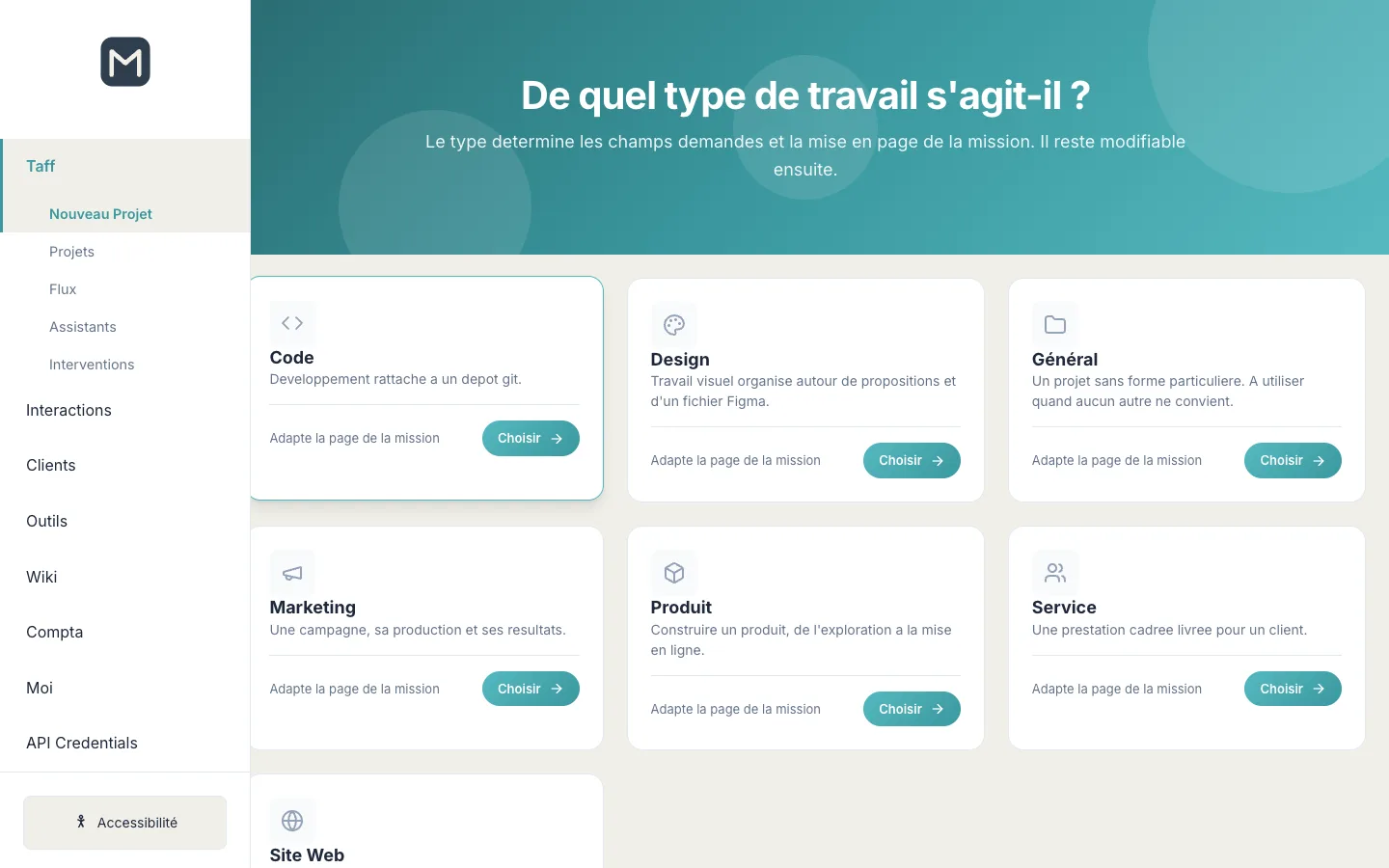
The type adapts the project page: Code (development linked to a git repository), Design (visual work organised around proposals and a Figma file), Général (General, when no other type fits), Marketing (a campaign, its production and its results), Produit (Product, from exploration to going live), Service (a defined service for a client) and Site Web (Website). Only the types enabled on your instance are offered.
Creating a project
- Click Taff > Nouveau Projet (or Nouvelle mission (New assignment) at the top of the project list).
- Choose the type of work and click Choisir (Choose). The type can still be changed afterwards.
- Enter the Titre (Title) (required) and the Description, and choose the Entreprise cliente (Client company).
- Click Créer une mission (Create an assignment). If you chose the wrong type, click Changer de type (Change type).
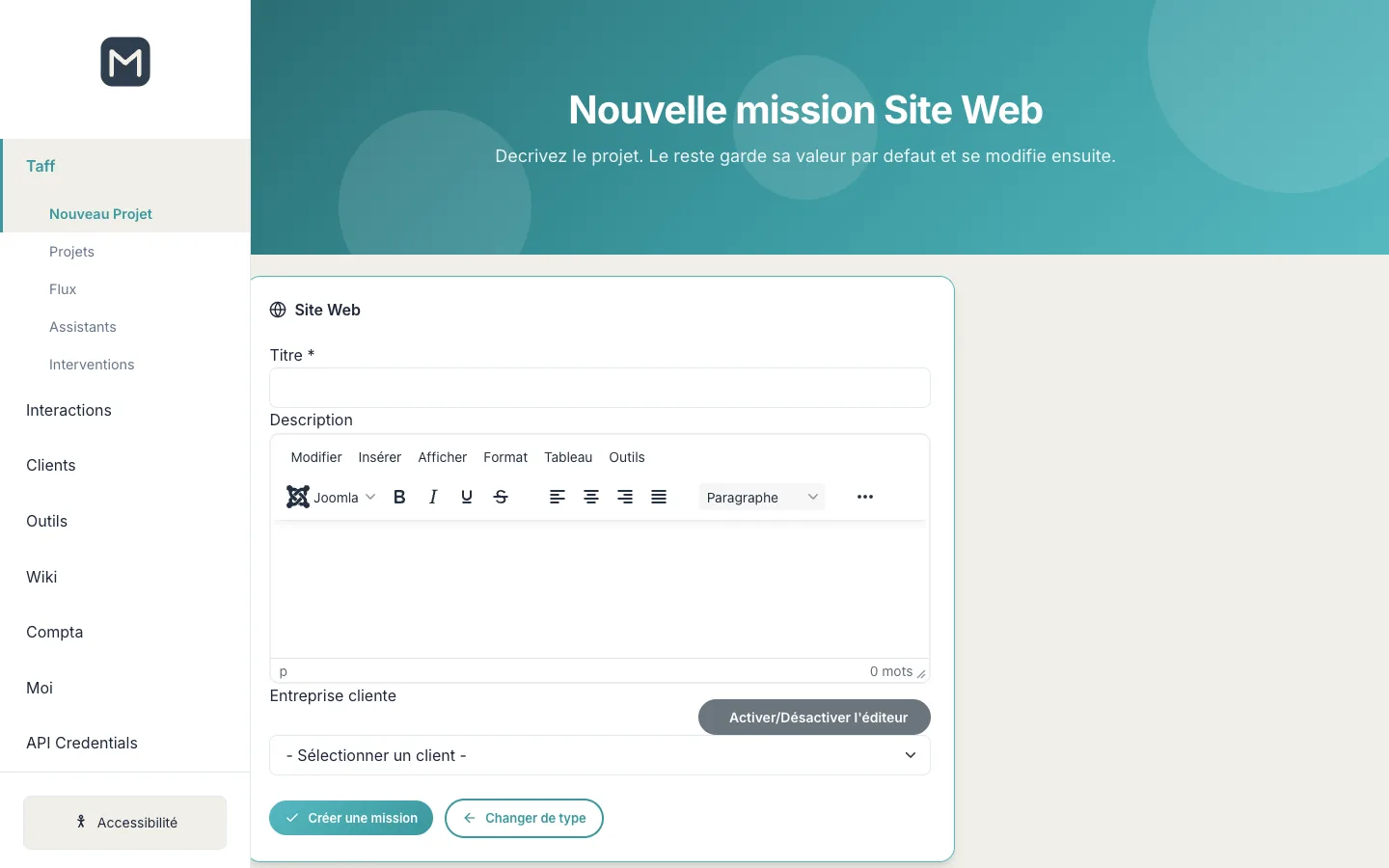
Dates, budget, team and the rest are filled in once the project has been created.
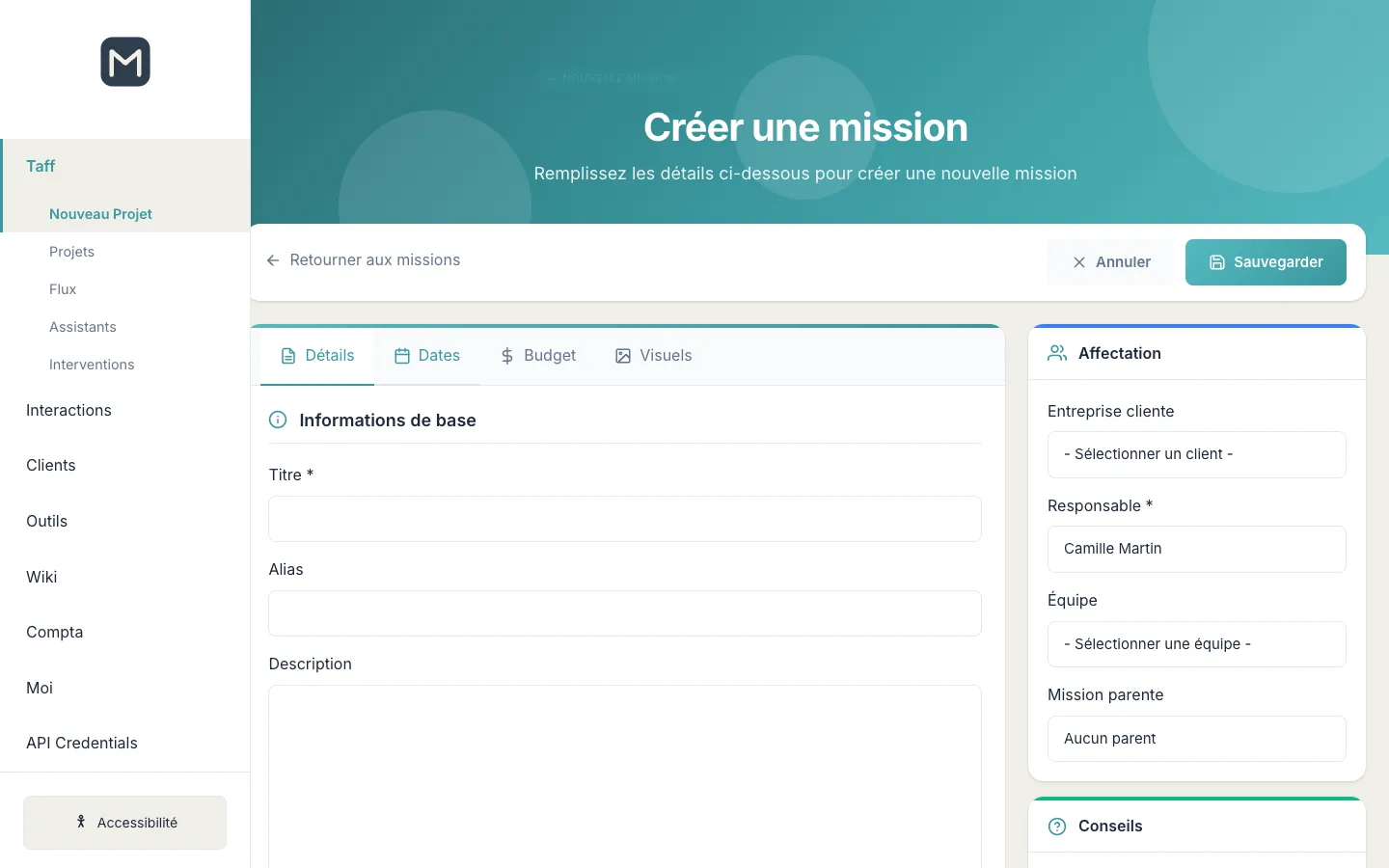
Tip: would you rather enter everything at once? On the type selection screen, click Passer et utiliser le formulaire complet (Skip and use the full form). It brings together the Détails, Dates, Budget and Visuels tabs, as well as the Affectation (Assignment) section (client company, manager, team, parent assignment). Save with Sauvegarder.
Following a project
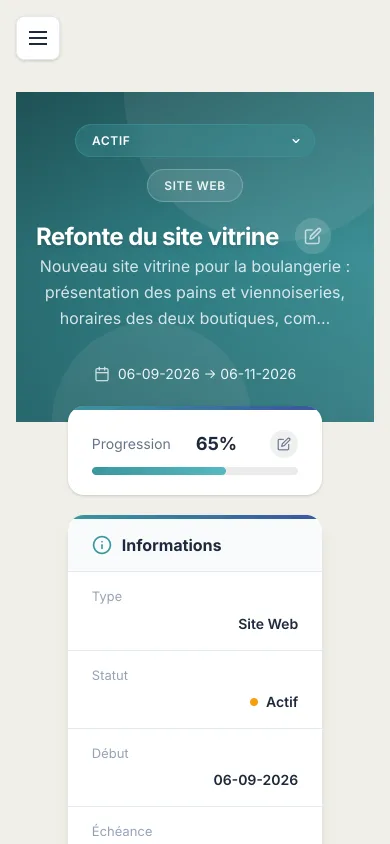
A project page shows at the top its status, type, title, description and dates. On the right, the Progression card and the Informations card (type, status, start, due date).
- To change the status, choose another one from the list at the top of the page (if you have the right to edit the project).
- To change the progress percentage, click the pencil on the Progression card.
- To edit the project, click the pencil next to the title.
The content is split into tabs, depending on the project type: Propositions, Description, Tâches and Visuels.
Getting a proposal approved
A proposal is a deliverable submitted for approval: a mock-up, copy, a go-live…
- Open the Propositions tab and click Ajouter une proposition (Add a proposal).
- Give it a title and a description, attach your files, then submit it.
- The person in charge of approval sees the proposal as En attente d'approbation. They can write a note, then click Approuver (Approve) or Rejeter (Reject).
- The proposal then changes to Approuvé or Rejeté, with the reply note.
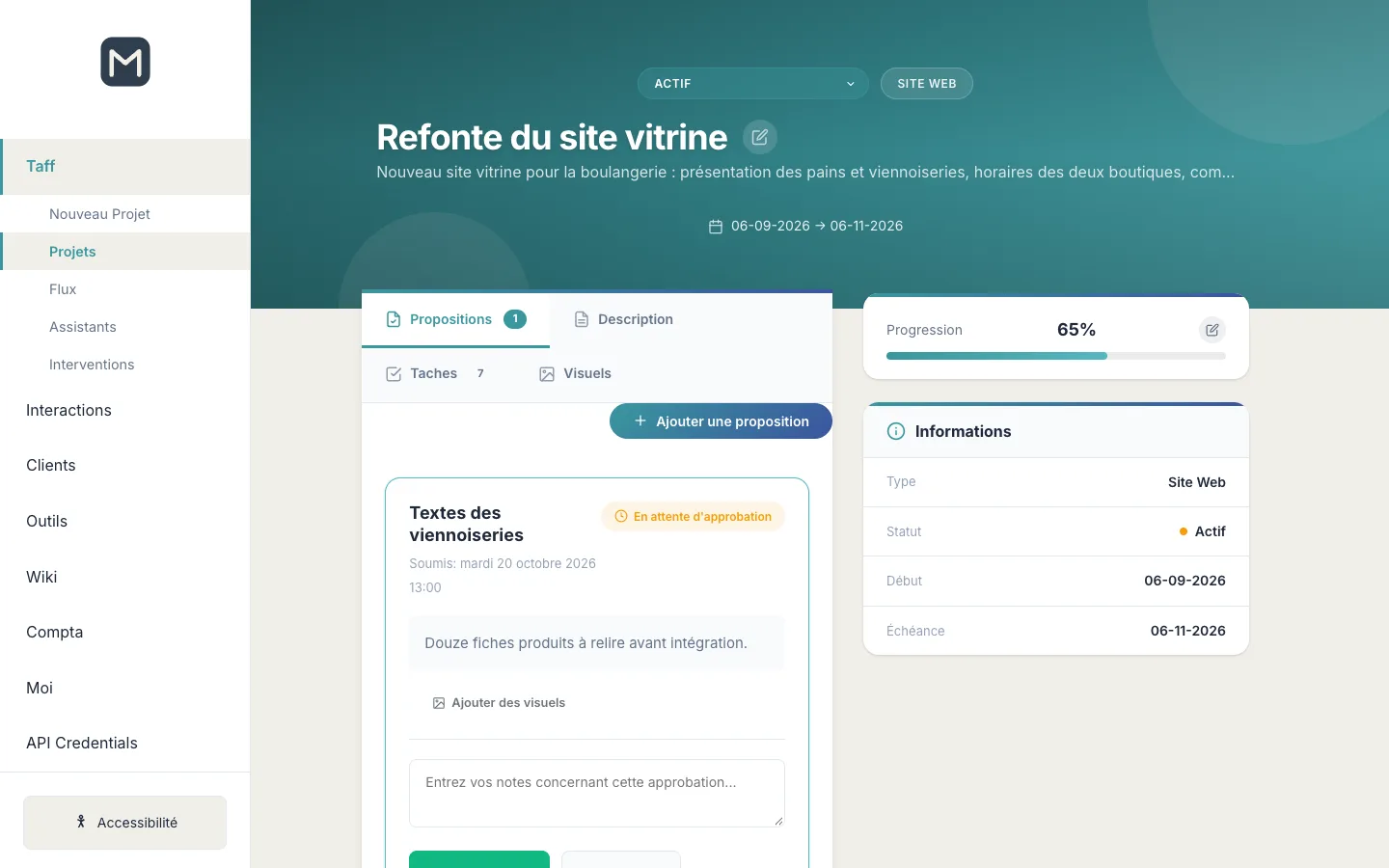
Tip: the number of pending proposals is shown next to the tab name.
Organising tasks
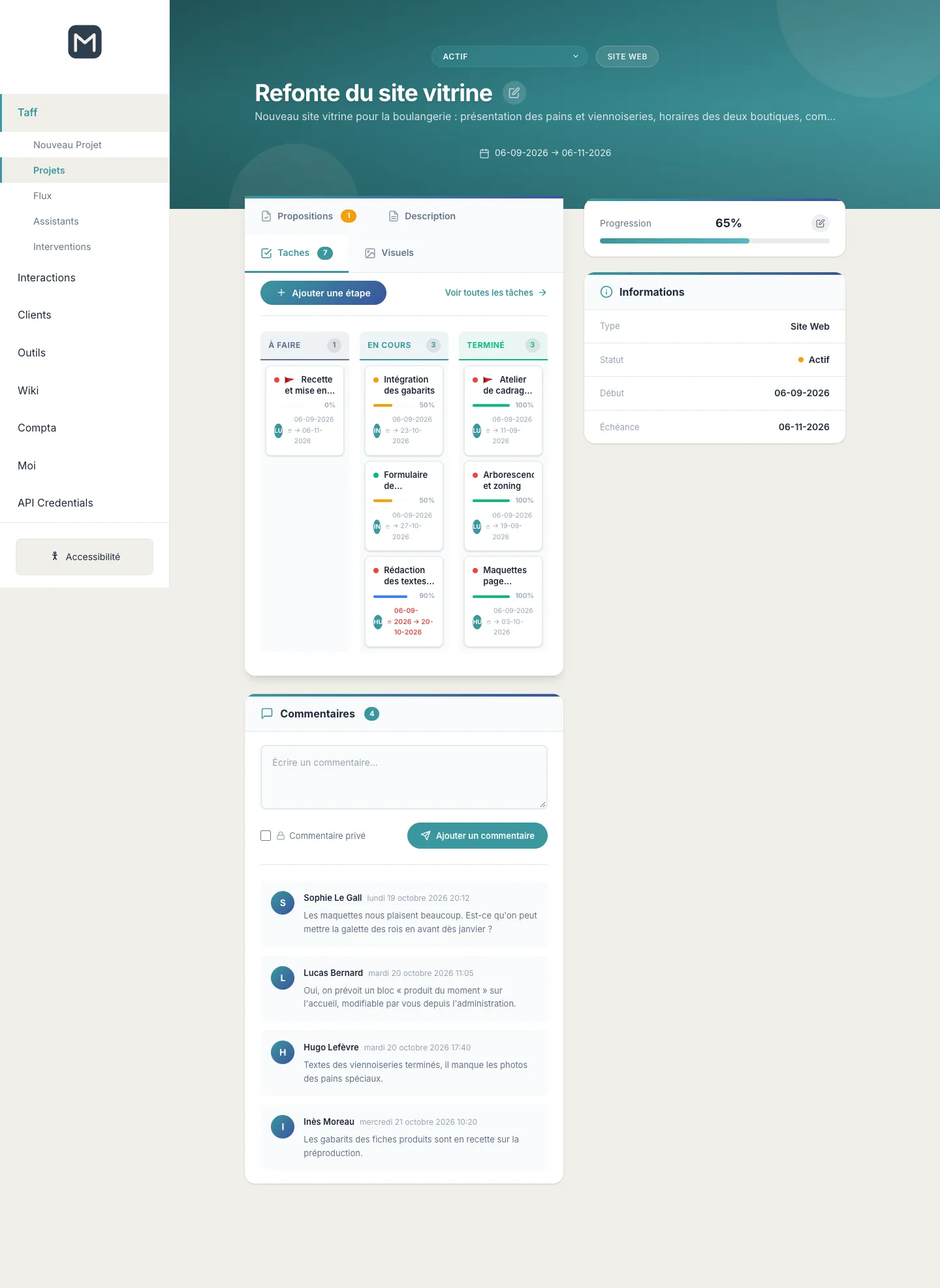
The Tâches tab presents the project steps in three columns:
- À faire (To do): steps in draft;
- En cours (In progress): steps that are active, under review or approved;
- Terminé (Done): completed steps.
Each card shows the title, progress, dates and the person assigned. A flag marks a milestone; a date in red marks a delay.
- To add a step, click Ajouter une étape (Add a step) and enter its title.
- To move a step forward, drag its card to another column.
- To see the tasks of all your projects, click Voir toutes les tâches (View all tasks).
Exchanging through comments
Below the tabs, the Commentaires block gathers the exchanges between the team and the client on the project, from oldest to newest.
- Write your message in Écrire un commentaire… (Write a comment…).
- Tick Commentaire privé (Private comment) if the message is internal: it will be marked as private.
- Click Ajouter un commentaire (Add a comment).
Handling interventions
An intervention is a one-off request from a client: a breakdown, an update, a training session. Open Taff > Interventions.
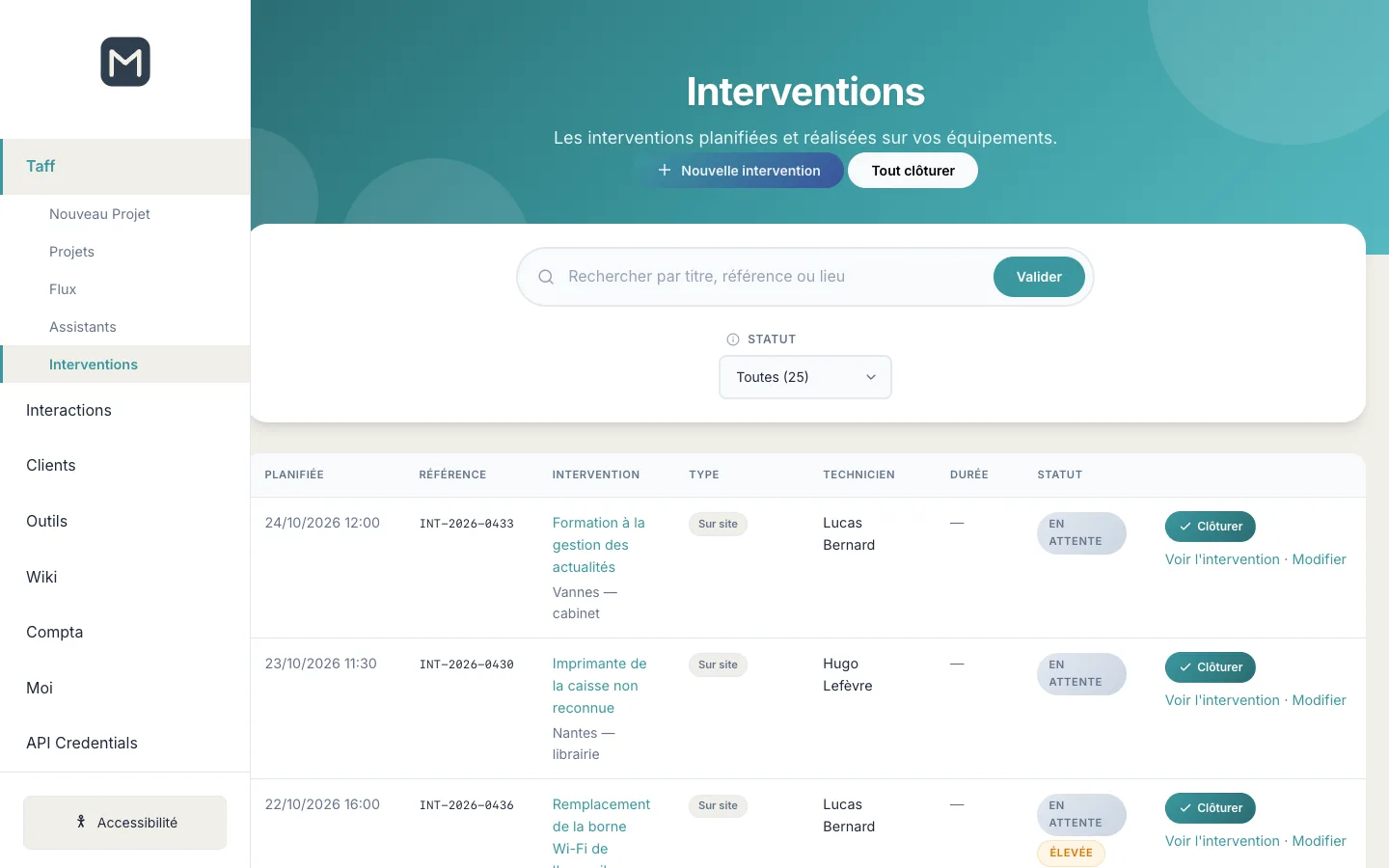
The list is sorted from newest to oldest (scheduled date, or creation date if the intervention is not yet scheduled). For each intervention, you see the scheduled date, the reference (in the format INT-2026-0001), the title and location, the type, the technician, the duration and the status.
Statuses, priorities and types
- Statuses: En attente (Pending), Urgente (Urgent), En cours (In progress), Terminée (Completed).
- Priorities: Faible (Low), Normale (Normal), Élevée (High), Urgente (Urgent). In the list, only the Élevée and Urgente priorities are flagged under the status.
- Types: Sur site (On site), À distance (Remote), Téléphone (Phone), Interne (Internal).
Searching and filtering
- Type a title, a reference or a location in the search box, then click Valider.
- Choose a Statut: the number of interventions for each status is shown in brackets.
Managers see all interventions. Other users see those they have requested (including by email, with the same address) or that are assigned to them.
Creating an intervention
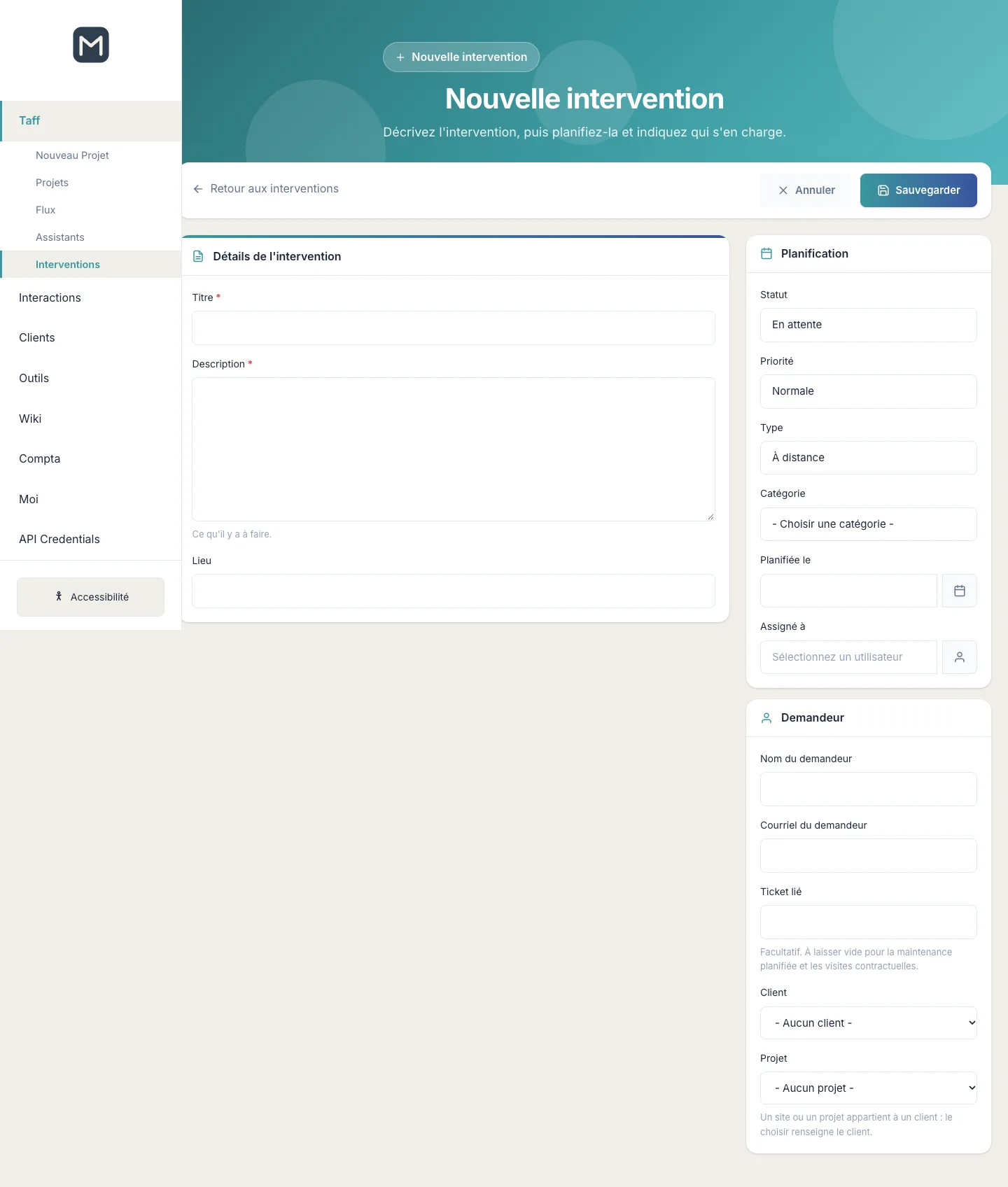
- Click Nouvelle intervention (New intervention).
- Under Détails de l'intervention, enter the Titre and the Description (required), then the Lieu (Location) if needed.
- Under Planification (Scheduling), choose the status, priority, type, category, date (Planifiée le) and the person in charge (Assigné à).
- Under Demandeur (Requester), enter the requester's name and email, the linked ticket if any, the Client and the Projet. Choosing a project fills in the client.
- Click Sauvegarder.
Viewing and closing an intervention
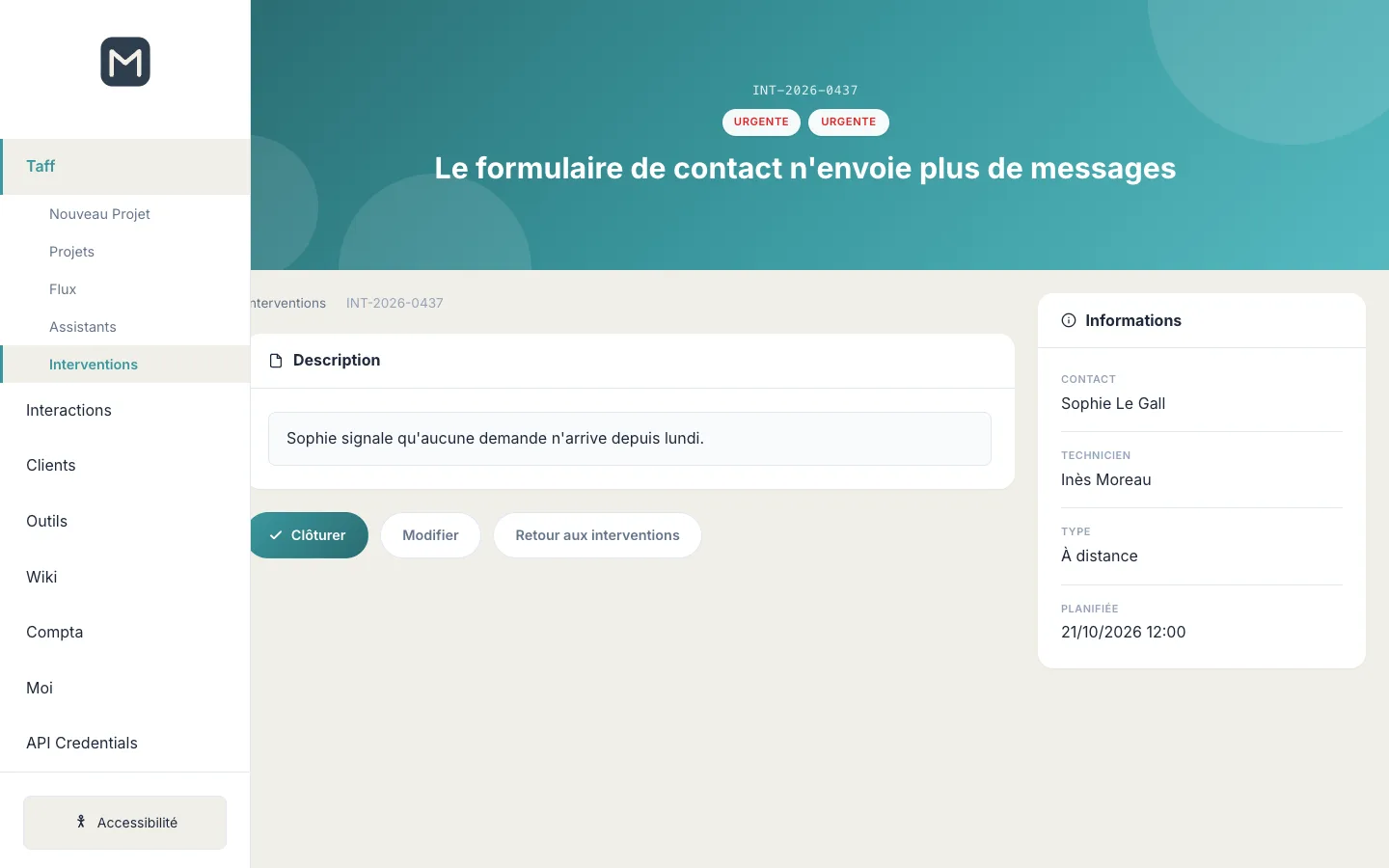
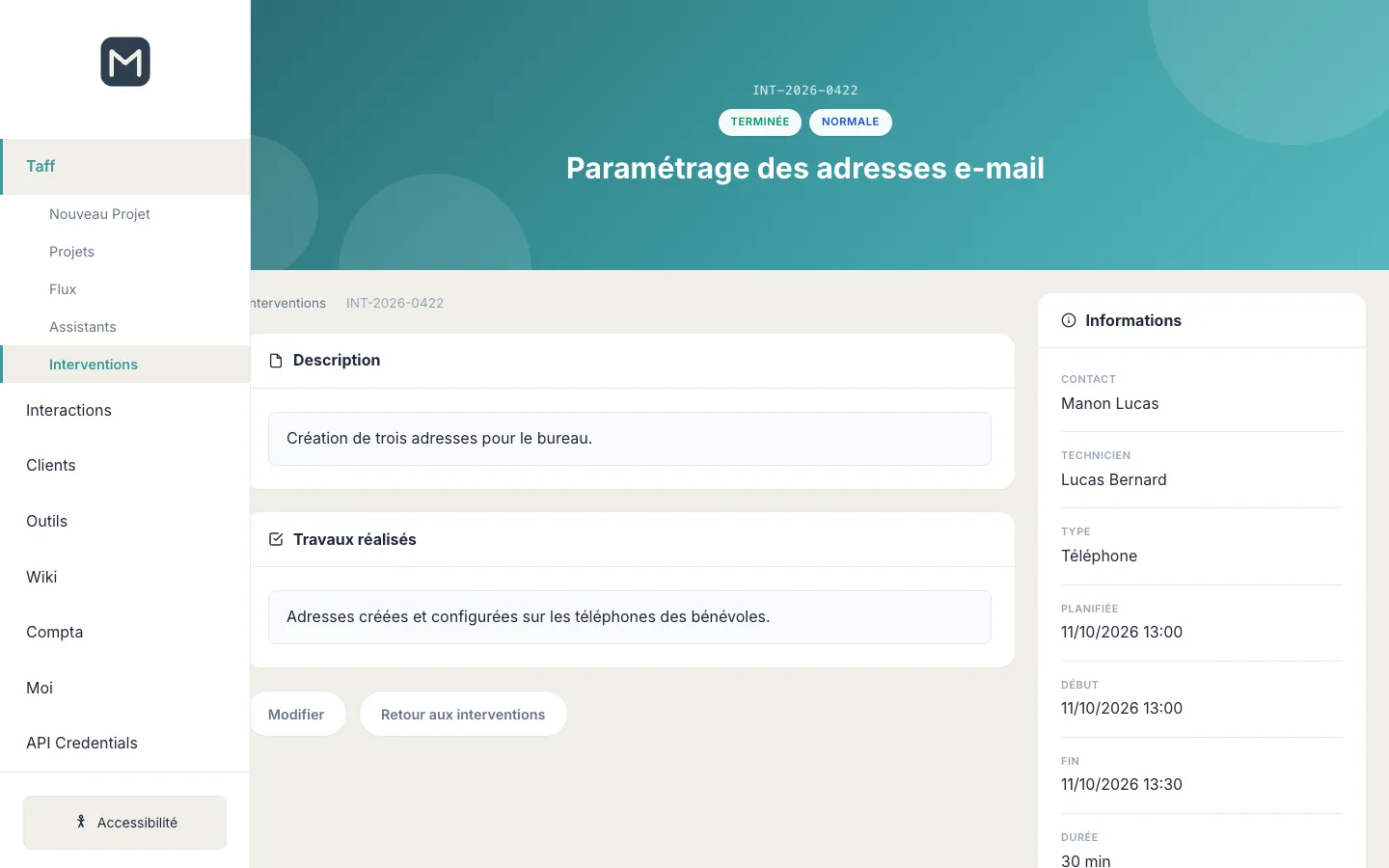
- Click the title of the intervention or Voir l'intervention (View intervention).
- The page shows the description and, once the intervention is completed, the Travaux réalisés (Work carried out). On the right: contact, technician, type, scheduled, start and end dates, and duration.
- When the work is done, click Clôturer (Close). The intervention changes to Terminée and 15 minutes are charged to the client on your timesheet.
- To correct an intervention, click Modifier (Edit).
Tip: the Tout clôturer (Close all) button completes all open interventions at once, without charging any time. They can be reopened one by one from their form.
Tracking your time: Ma journée de travail
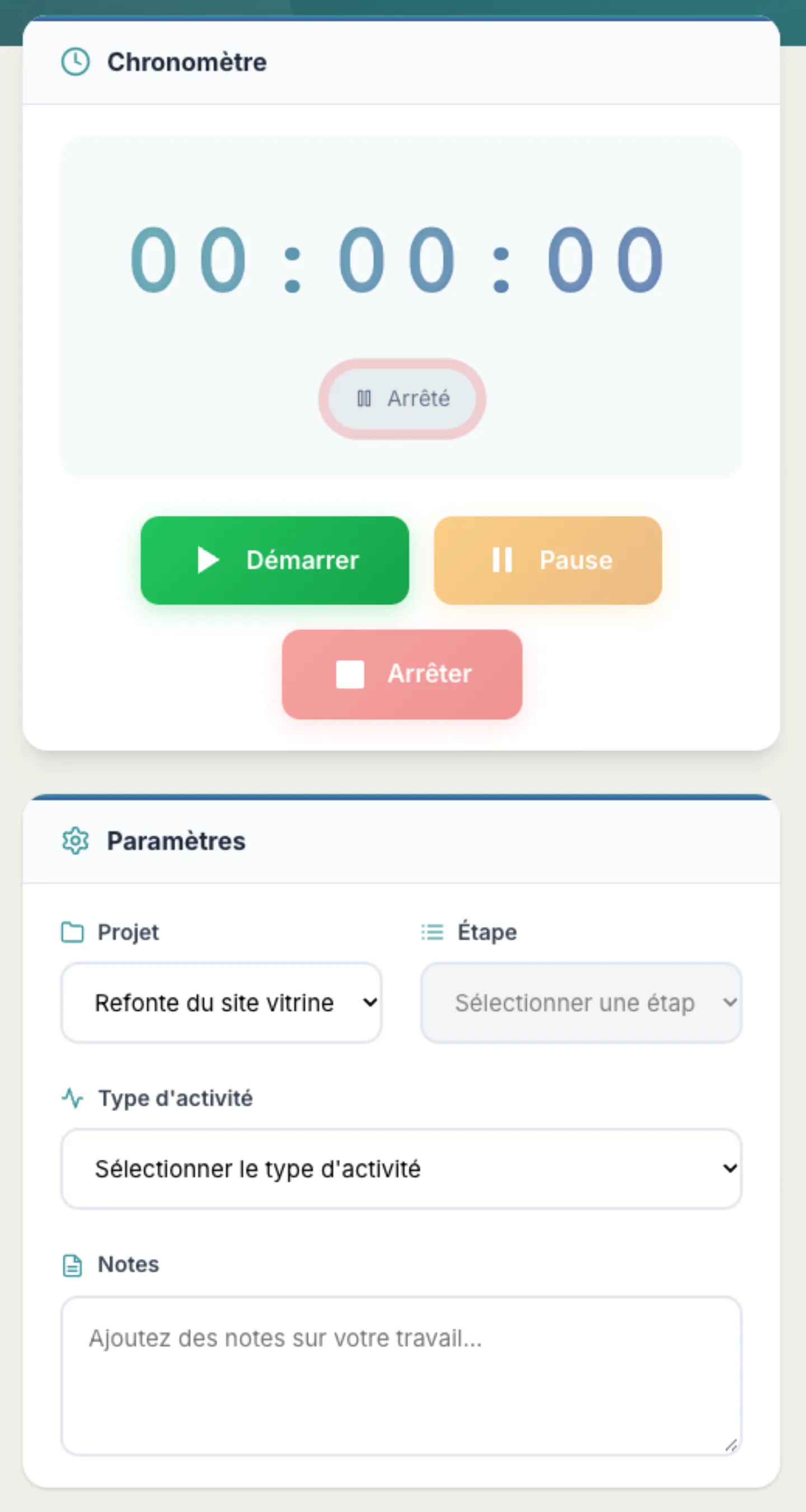
Open Moi > Ma journée de travail. The timer records the time spent on a project.
- Under Paramètres (Settings), choose the Projet (only active projects or projects awaiting approval are offered), then the Étape (Step) if you wish.
- Choose the Type d'activité (Activity type): Développement, Design, Réunion, Recherche, Tests, Documentation, Support or Autre (Development, Design, Meeting, Research, Testing, Documentation, Support or Other). Add Notes if needed.
- Click Démarrer (Start). Use Pause for an interruption.
- Click Arrêter (Stop): the time is recorded as a draft entry on your timesheet.
The timesheet
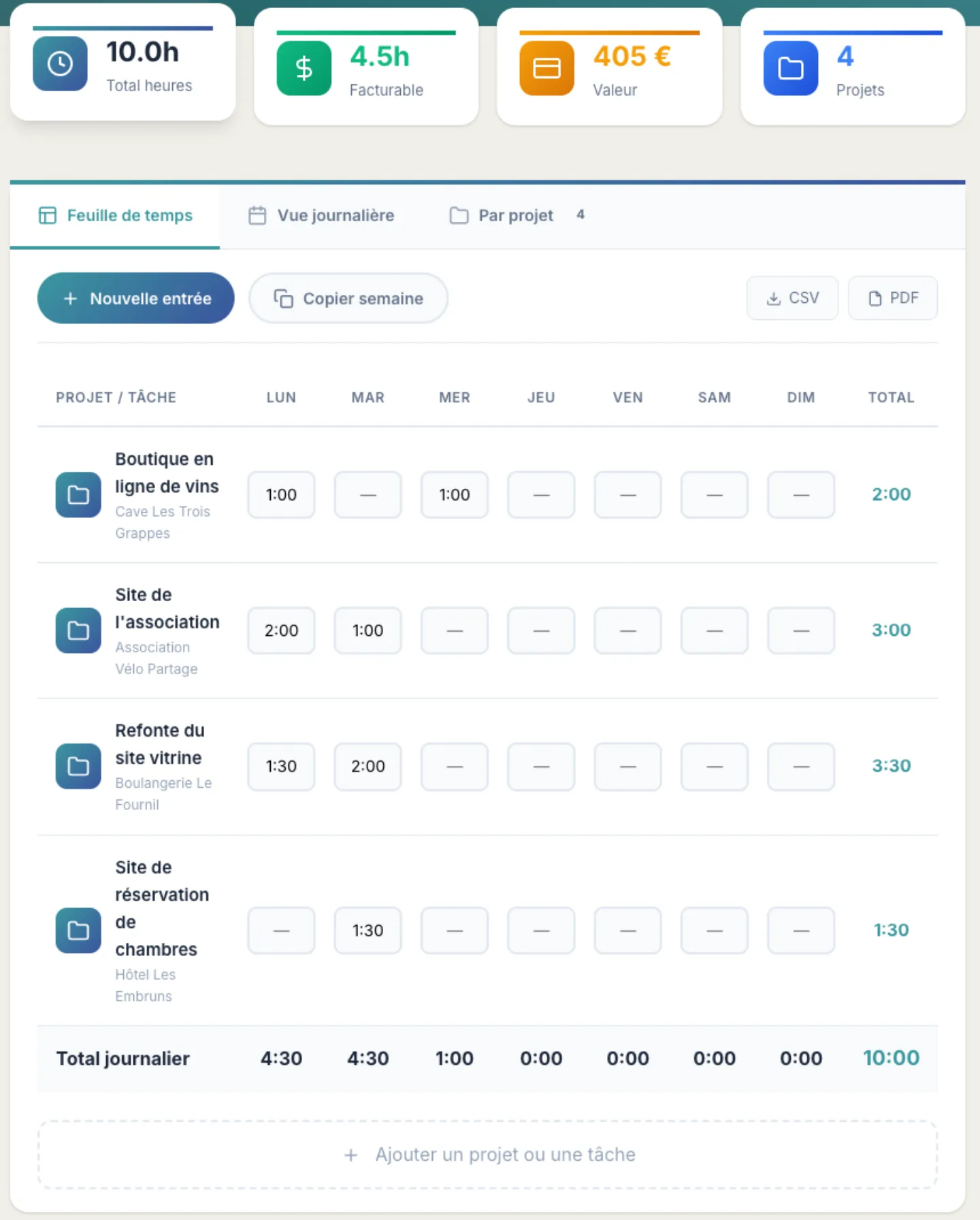
From Actions rapides (Quick actions), click Voir la feuille de temps (View timesheet). It shows the current week, project by project and day by day, with the total hours, the billable share, its value and the number of projects.
- Navigate with Semaine précédente (Previous week) and Semaine suivante (Next week).
- To enter time without the timer, click Nouvelle entrée (New entry): enter the date and the duration (for example 2:30 or 2.5).
- Copier semaine (Copy week) copies the entries from the previous week; CSV and PDF export it.
- The Vue journalière (Daily view) and Par projet (By project) tabs present the same hours differently.
- Click Enregistrer (Save) to keep your entries, then Soumettre (Submit) when the week is complete: your draft entries change to submitted status.
Frequently asked questions
I cannot see the Taff menu.
The Taff menu is reserved for the Collaborateurs group. Ask an administrator to add you to it.
I cannot see "Nouveau Projet".
Creating projects is reserved for partners and for the groups authorised in the component options. A staff member can nevertheless work on projects shared with them.
A project does not appear in my list.
The Projets list only shows projects shared with you. Ask the project manager or an administrator to give you access.
My project does not appear in the timer.
The timer only offers projects with the status Actif or En attente d'approbation. Change the project's status if needed.
What is the difference between a project and an intervention?
A project runs over several steps, with proposals to approve and exchanges. An intervention is a one-off request, often support, which is scheduled, assigned and closed.
What happens when I close an intervention?
It changes to the status Terminée, its end and duration are recorded, and 15 minutes are charged to the client on your timesheet. With Tout clôturer, no time is charged.